
Creating a Business Model
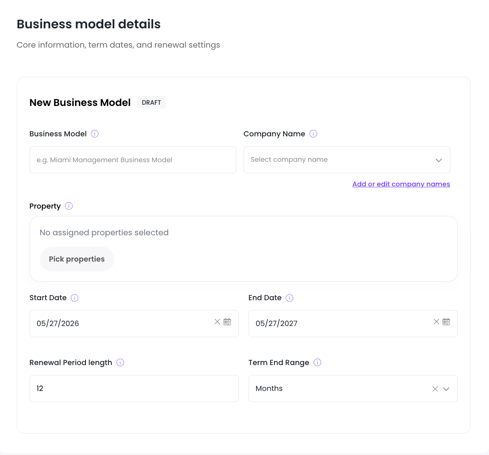
Navigate to Accounting → Business Models and click + New Business Model. Give it a name that makes it easy to identify (e.g., "Standard 20% — US Properties" or "EU VAT Model").
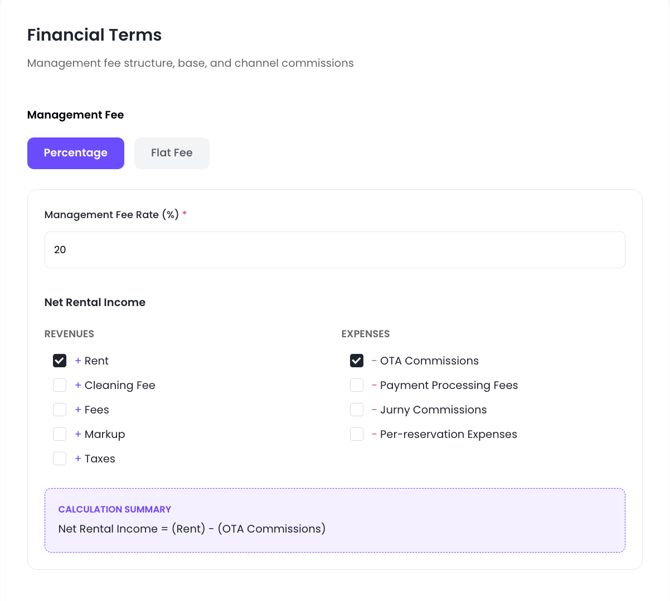
The Management Fee Formula Builder
This is the most significant new capability in the Business Model. Instead of being limited to a single calculation base, you can now build your own formula by choosing exactly what goes into it.
Step 1: Choose your base revenue
Select which revenue components to include in the calculation base:
|
Option |
What it includes |
|---|---|
|
Rent only |
The nightly rental amount only — no fees, no taxes |
|
Rent + fees |
Rent plus any additional fees (e.g., pet fee, late check-out) |
|
Rent + fees + taxes |
The full gross guest payment before any deductions |
Step 2: Apply deductions (optional)
Choose which costs to subtract from your base before calculating the fee:
- OTA commissions (e.g., Airbnb, Booking.com)
- Payment processor commissions
- Jurny commission
- Markup (if applicable)
The amount remaining after deductions is your calculation base — this is the number your management fee percentage applies to.
Step 3: Set your fee structure
- Percentage-based — Enter a percentage. This is applied to the calculation base you built in Steps 1 and 2.
- Fixed fee — Enter a flat dollar/euro amount per statement period.
Step 4: Cleaning fee inclusion (optional)
Decide whether cleaning fee revenue should be included in the management fee calculation base. In some markets, cleaning is a taxable service and the management fee should apply to it; in others it should be excluded. This is configurable per Business Model.
Tax on Management Fee
For property managers operating in VAT, GST, or similar tax environments, you can add a tax line to the management fee.
Enable the Tax on management fee toggle and enter:
- The tax percentage (e.g., 20%)
- A label (e.g., "VAT 20%" or "GST 10%")
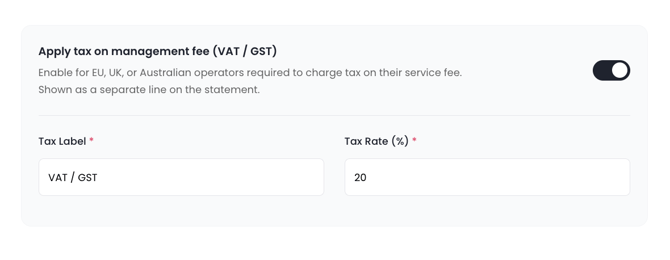
When enabled, the statement renders an additional line between the management fee and expenses showing the tax amount. This reduces the owner's net payout and makes the statement function as a tax invoice for the management service.
Example — EU market with 20% VAT:
|
Line item |
Amount |
|---|---|
|
Gross revenue |
€2,000 |
|
OTA commission |
−€200 |
|
Net revenue |
€1,800 |
|
Management fee (20%) |
−€360 |
|
VAT on management fee (20%) |
−€72 |
|
Expenses |
−€100 |
|
Owner payout |
€1,268 |
Example — US market (no VAT, default):
|
Line item |
Amount |
|---|---|
|
Gross revenue |
$2,000 |
|
OTA commission |
−$200 |
|
Net revenue |
$1,800 |
|
Management fee (20%) |
−$360 |
|
Expenses |
−$100 |
|
Owner payout |
$1,340 |
The system defaults to the no-tax scenario (Scenario A). The tax on the management fee field is optional and only affects the statement when explicitly enabled.
Assigning a Business Model to a property
Once created, assign the Business Model to multiple properties. Changing a Business Model updates all agreements that reference it going forward — it does not affect statements that have already been sent.