
Creating a new agreement
Go to Accounting → Owner Agreements and click + New Agreement.
Required setup
- Owner & property: Link the agreement to an owner profile and a property. If the property has co-owners, you'll add them in the Co-owners section (see below).
-
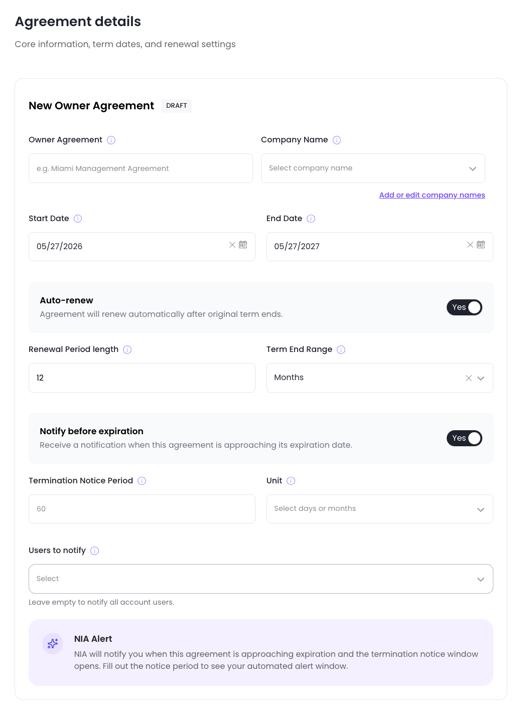
Agreement dates: Set the start date, end date, and whether the agreement auto-renews. If auto-renewal is on, the contract rolls forward automatically. If off, jOS will alert you when the agreement approaches its expiry date (within the termination notice period).
-
Termination notice period: Enter the number of days' notice required by either party to terminate the agreement. The default is 30 days. NIA will proactively surface a reminder when the agreement's end date falls within this window.
Owner Stay Policy
This section governs how all owner stays at this property are priced — whether they're contracted dates blocked directly in the agreement, stays requested from the Owner Dashboard, or manually inserted stays.
Select one of the following options:
|
Option |
How it works |
|---|---|
|
No charge |
Owner stay generates $0 revenue. The period is treated as vacant for statement purposes. |
|
Charged at cost |
Owner pays operational costs only (e.g., cleaning fee). Appears as a revenue line equal to the cost. |
|
Charged at market rate |
Owner pays the applicable nightly rate. Appears as regular revenue in the statement. |
|
Custom flat rate |
Enter a specific nightly rate that applies to all owner stays on this property. |
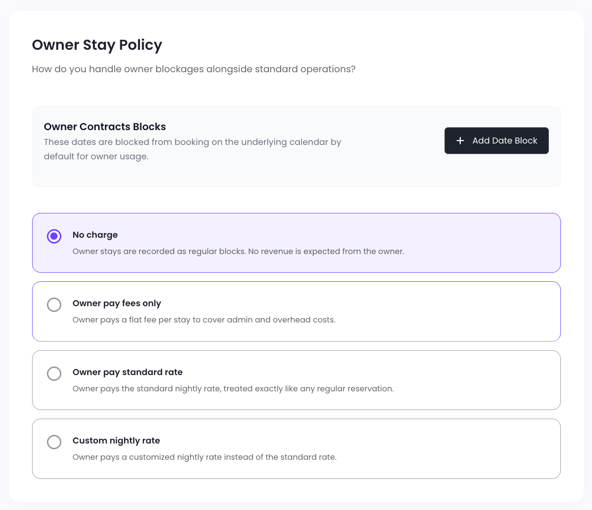
Whatever you select here is applied automatically whenever a blocked or requested owner stay falls within a statement period.
Contracted owner dates
If the owner has specific dates reserved by contract (e.g., two weeks in August every year), enter them here. The system will:
- Automatically block those dates on the calendar when the agreement is saved
- Re-block them each year if the contract is set to auto-renew
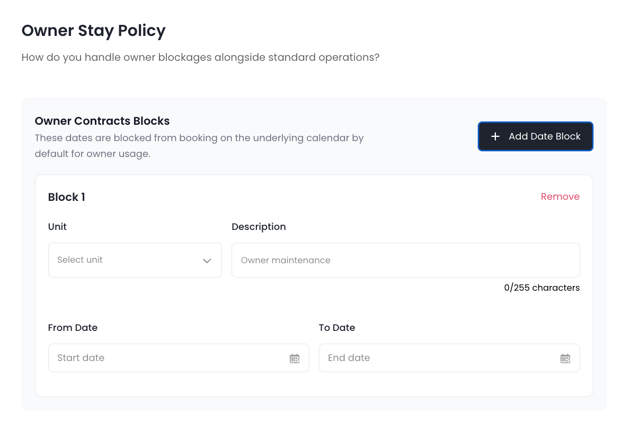
Blocked dates are labeled "Owner stay · [Owner name]" (or "Co-owner stay · [Name]" for co-owners) so they're easy to identify on the calendar.
Co-owners
If two or more people share ownership of the property, click + Add co-owner in the Co-owners section. For each co-owner, you'll:
- Select or create their owner profile
- Enter their ownership percentage
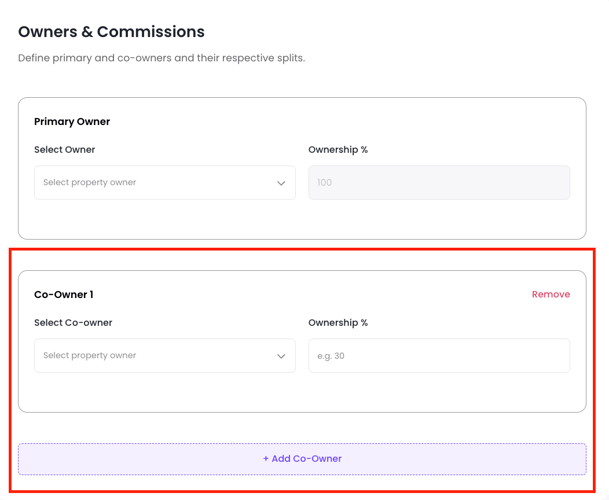
The system shows a running total (e.g., "Total allocated: 80% of 100%") and will block saving until the percentages add up to exactly 100%.
Each co-owner has their own banking details sub-section within the agreement so payouts route correctly per person.
Managing existing agreements
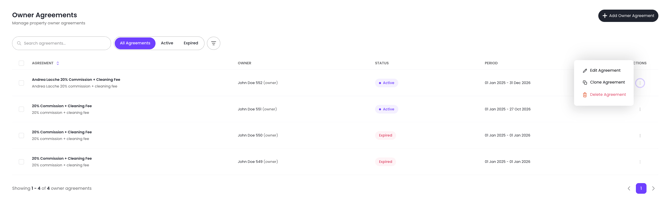
List view
The agreement list view now shows:
- Owner name and property
- Start date and end date (replacing the old "Term" column)
- Auto-renewal status — shows on/off; if off and the contract is expiring within one month, it's flagged visually
- Statement status at a glance
Viewing an agreement
Click any agreement to open a read-only view. You no longer have to go into Settings/Edit just to look at the details.
Cloning an agreement
Use the Clone option to duplicate an agreement. All fields are copied over, including: Owner Stay Policy, termination notice period, T&Cs, fee structure, template assignment, and channel commission settings.
The following fields are cleared and must be re-entered on the new agreement: property assignment, owner name, owner contact details, and banking/payout details. Statement history is never copied.
Exporting and sending
You can export any agreement as a PDF and send it to the owner directly by email from within jOS.
Editing an agreement
Changes to an agreement apply to outstanding (Draft or In Review) and future statements only. Statements that have already been sent, superseded, or marked paid are permanently locked and will not be affected.
When you save a change, jOS shows a confirmation prompt: "These changes will apply to all outstanding and future statements. Issued statements will not be affected. Do you want to continue?" You must confirm before changes are saved.