
How Automatic Generation Works
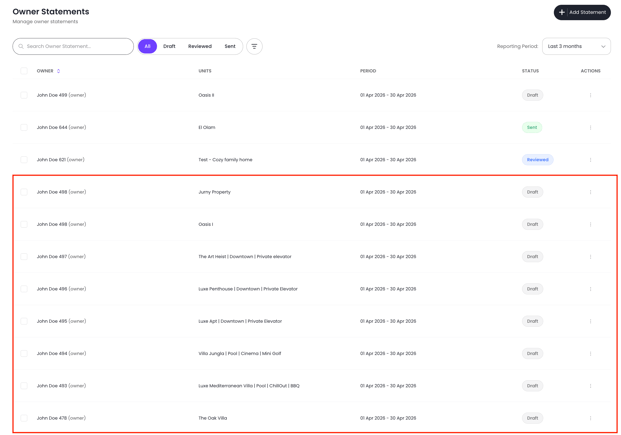
At the end of each statement period (monthly, quarterly, or annually — whichever you've set in the Business Model), Jurny automatically creates a draft statement for every active agreement. The statement pulls in all reservations from the period, applies the agreement's calculation formula, and computes the net owner payout.
You don't need to click "Add Statement" manually for each property. The drafts are waiting for you to review.
Statement lifecycle
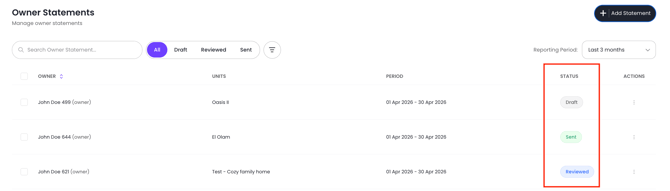
Every statement moves through the following statuses:
Draft → Reviewed → Sent
If a sent statement needs to be corrected, it follows an extended path:
Sent → In Revision → Draft (v2) → Reviewed → Sent (v2)
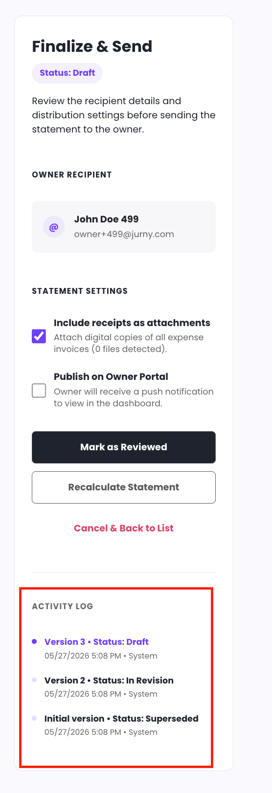
Statements in Sent status or later are read-only. The only action that unlocks editing is Revise Statement, which creates a new versioned instance and archives the original.
Reviewing statements
Open any Draft statement to review the full financial breakdown:
- Gross revenue from reservations
- OTA commissions
- Management fee (and tax on fee, if applicable)
- Expenses
- Net owner payout
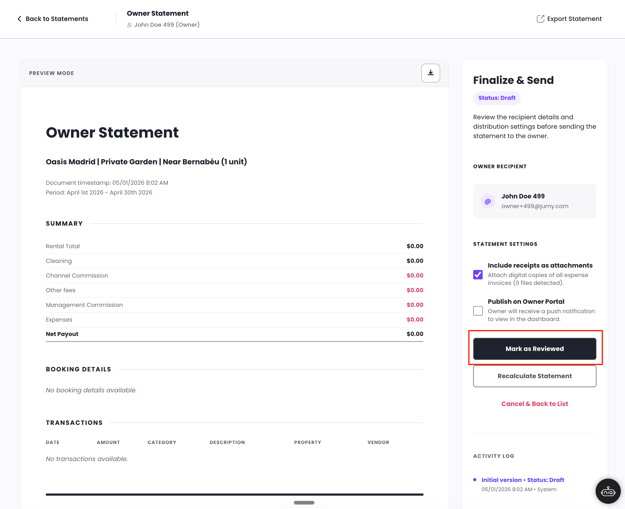
Make any adjustments needed, then mark the statement as Reviewed when it's ready to send.
Sending statements
Single send
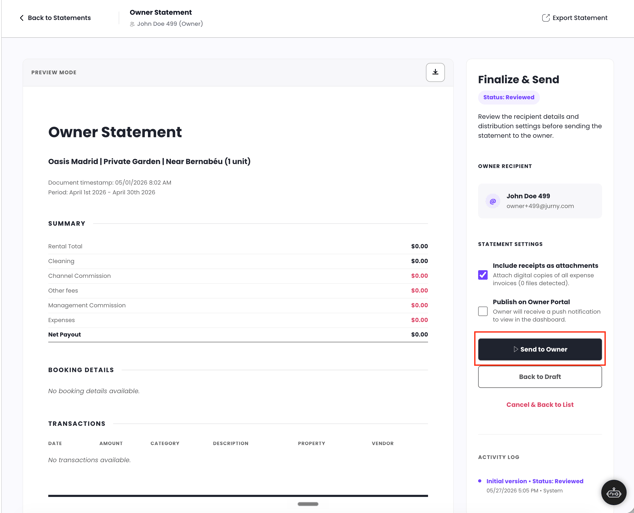
Open a statement and click Send. Jurny sends it to the email address on the owner's profile.
Receipt attachments
When sending, you'll see a checkbox: "Include expense receipts as attachments" (default: on). If checked, all owner-visible receipts for that statement are bundled and attached to the email (ZIP if multiple). The maximum attachment size is 25 MB — if the receipts exceed this, the system falls back to in-statement links and notifies you.
Revising a sent statement
If you need to correct a statement that has already been sent:
- Open the statement and click Revise Statement
- A modal appears asking you to document the reason for revision — enter it and confirm
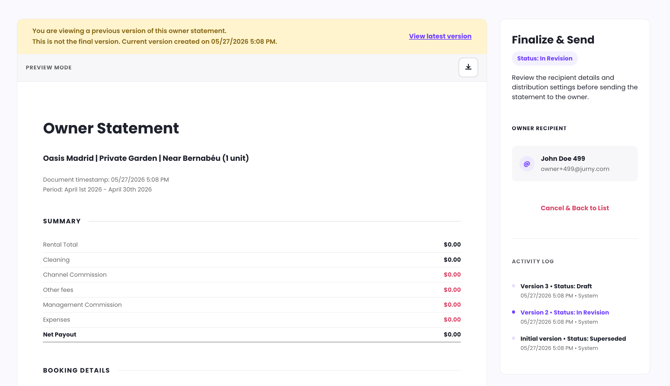
- The original statement is archived as Superseded
- The statement enters In Revision status — make your edits
- Click Save Draft → status becomes Draft (v2)
- Review and send as normal
When the owner receives the revised statement, it includes a note: "This revised statement supersedes Statement [STMT-2026-XXXX] issued on [date]."
In the statement list, both versions are visible. The original shows as Superseded and the revised version shows as Sent (v2). Only the latest active version counts in financial summaries and exports.
How cancellations and refunds are handled
Cancellation before check-in — statement not yet sent
The booking is automatically removed from the Draft statement. No reversal line is needed.
Cancellation before check-in — statement already sent
The original statement is not modified. A negative reversal line is automatically added to the next generated statement for that property.
Partial refund — statement not yet sent
The owner payout for that reservation updates automatically. The Draft statement recalculates.
Partial refund — statement already sent
The original statement is not modified. A manual adjustment line is pre-suggested on the next statement. You can accept the suggested amount or override it.
Mid-stay cancellation (early checkout)
Revenue is recalculated based on nights actually stayed. If the statement is in Draft, it updates automatically. If already Sent, the same rules as a post-send partial refund apply.
Rule for all scenarios: Corrections never flow backward into a Sent or Superseded statement. All adjustments move forward into the next period.
Important: If a reservation amount changes after it's already in a sent statement (e.g., a post-checkout refund), jOS will show a pop-up on the reservation alerting you that the owner statement may be affected. If you choose not to update the owner (e.g., your company is absorbing the cost), click "Do not update this reservation" — this action is logged for your records.