
What's changed at a glance
Previously, owner-related settings and tools were spread across different areas of jOS. They are now unified under Accounting, which is organized into four main sections:
Owner Profile → Business Model → Owner Agreement → Transactions
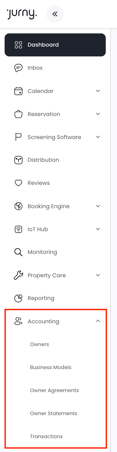
Each section has a specific role, and together they form the full accounting workflow for each property you manage.
What's in the Accounting tab
Owner Profile
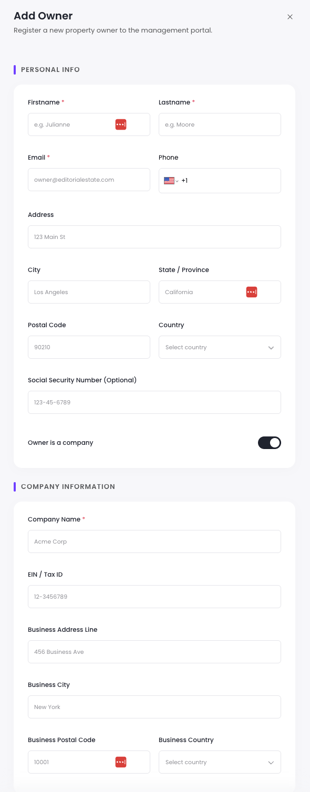
The Owner Profile is now a complete data record for each owner, containing everything you need for compliance, payments, and portal access — all in one place.
- Tax & legal information — All the data needed to issue a W-8 or W-9, including legal name, address, company name, and tax ID.
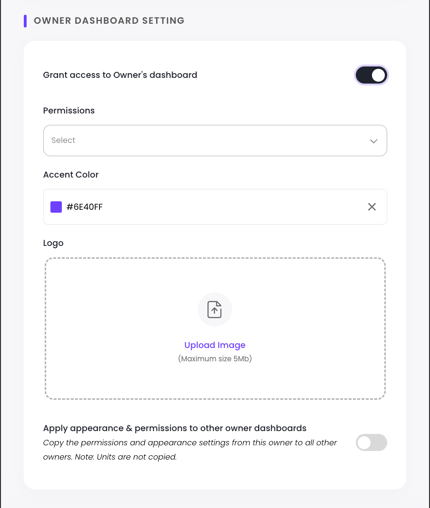
- Owner Dashboard permissions — Control what each owner can see and do in their dashboard.
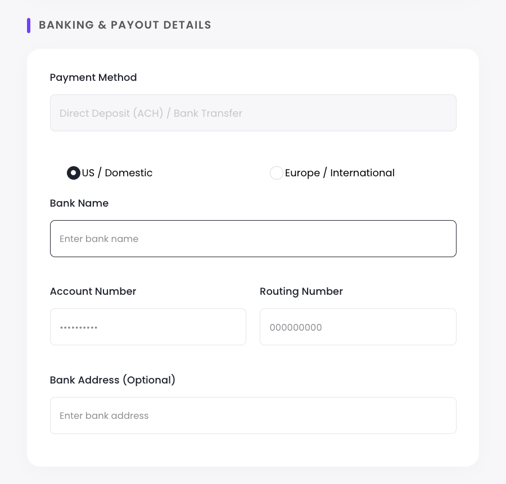
- Payment details — Banking information for payout routing.
→ Owner Profile & Tax Information
Business Model
The Business Model is a reusable template that defines how revenue is calculated and how your management fee is structured. You set it up once and assign it to as many properties as you want, making onboarding new properties significantly faster.
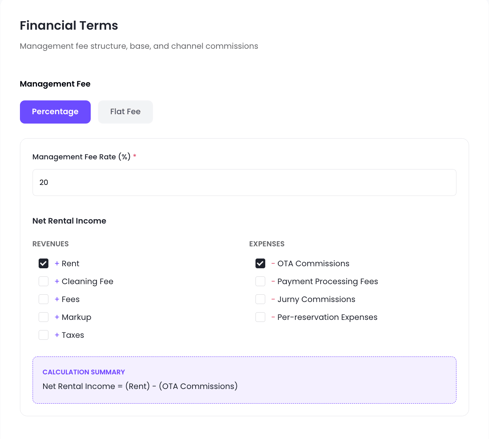
- Formula Builder — Build your own management fee formula by selecting what revenue components to include (rent, fees, taxes) and which deductions to apply (OTA commissions, payment processor fees, Jurny commission, markup). No more being locked into a single calculation method.
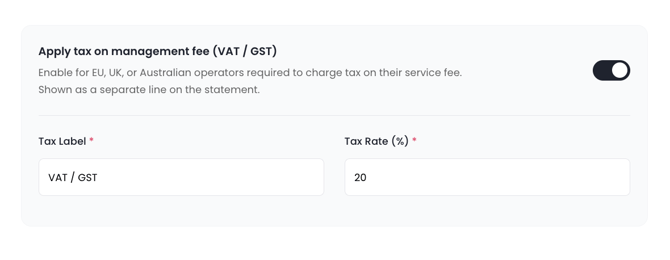
- Tax on management fee — Add a VAT, GST, or similar tax to your management fee for markets where this applies. The tax line appears separately on the statement.
- Flexible fee structures — Percentage-based or flat fee, calculated on the base of your choosing.
→ Setting Up Your Business Model
Owner Agreement
The Owner Agreement is where you set the specific terms for each owner-property relationship. It uses the Business Model as its calculation engine and adds contract-level details on top.
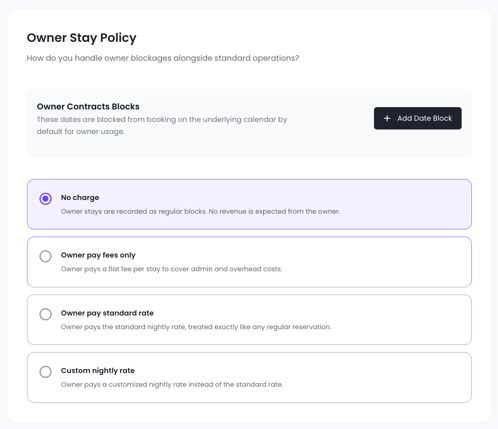
- Owner Stay Policy — Set how owner stays on this property are priced: no charge, at cost, at market rate, or a custom flat rate. This governs all calendar blocks and owner-requested stays automatically.
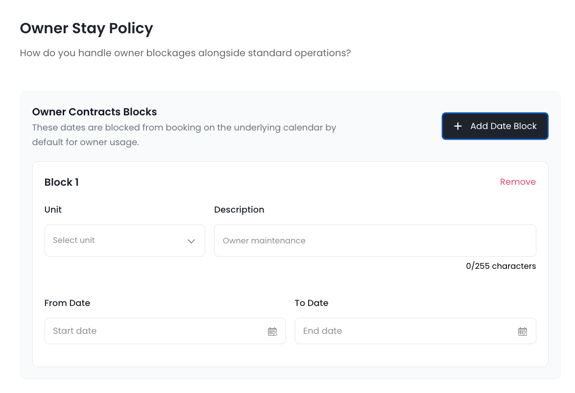
- Contracted owner dates — Block specific dates reserved for the owner directly within the agreement. These auto-populate on the calendar and renew annually on auto-renewal contracts.
- Termination notice period — Define the required notice in days. NIA will proactively alert you when a contract approaches its end date within the notice window.
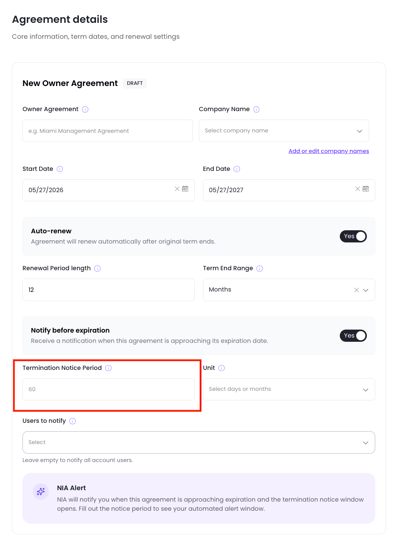
- Agreement list view improvements — See start and end dates, auto-renewal status, and expiry warnings at a glance. Clone agreements in one click, export to PDF, and send directly to the owner by email.
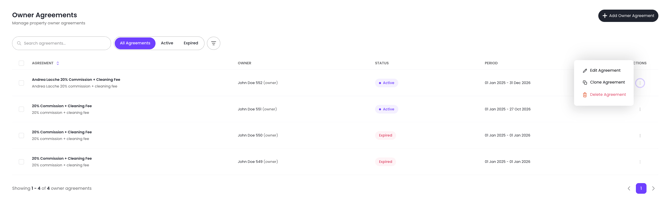
→ Creating and Managing Owner Agreements
Owner Statements
Statements are now generated automatically based on the period defined in the Business Model — monthly, quarterly, or annually. The system does the calculation work; you review and send.
- Automatic generation — At the end of each period, Jurny generates draft statements for all active agreements. No manual "Add Statement" needed.
- Review and send — Review statements and send to their corresponding owners
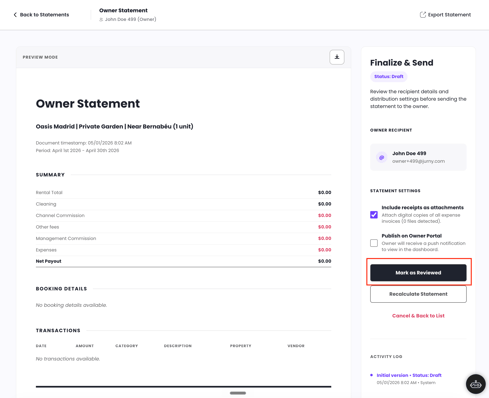
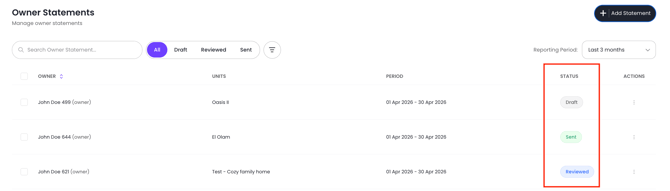
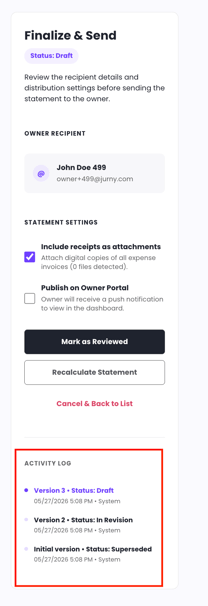
- Statement versioning — Every statement has a full status lifecycle: Draft → Reviewed → Sent. If you need to revise a sent statement, the system creates a versioned copy and archives the original as "Superseded."
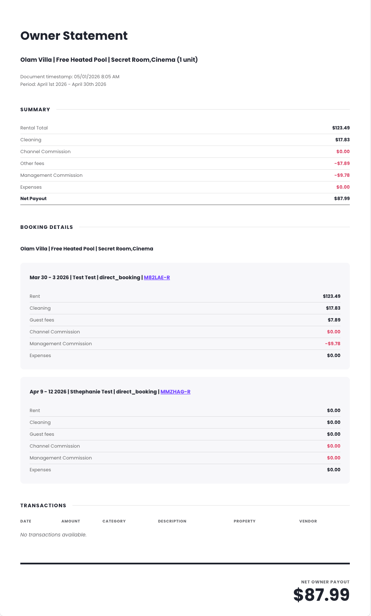
- New statement template — A cleaner, more structured breakdown of all financials: gross revenue, OTA commissions, management fee, expenses, and net payout.
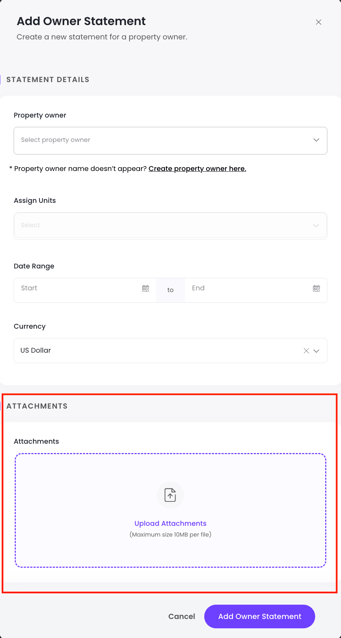
- Receipt attachments — Attach expense receipts to statements and optionally include them as email attachments when you send.
- Cancellation & refund handling — Defined rules for how mid-stay cancellations and partial refunds flow through open and sent statements automatically.
→ Automatic Statement Generation
Transactions
The Transactions tab is where all financial line items live — expenses, credits, and adjustments — giving you a complete and auditable record of everything that flows through an owner's account.
- Improved expense tracking — A redesigned expense form with new fields for vendor name, invoice/reference number, category, and attribution (owner vs. PM-absorbed).
- Markup — Apply a markup percentage to any expense. The owner sees only the billed amount; the markup is internal.
- Receipt management — Attach receipts (JPG, PNG, PDF) to any expense. Add them at creation or later from the expense row. Owners can download all receipts from their dashboard.
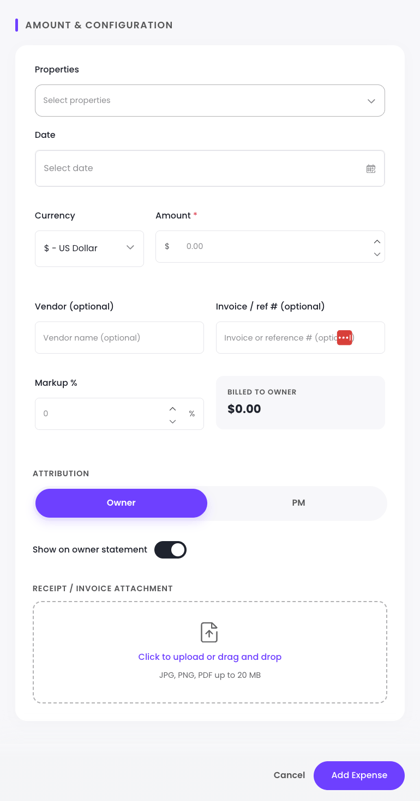
- Multi-property expenses — Apply a single expense to multiple properties at once, either at the full amount per property or split equally.
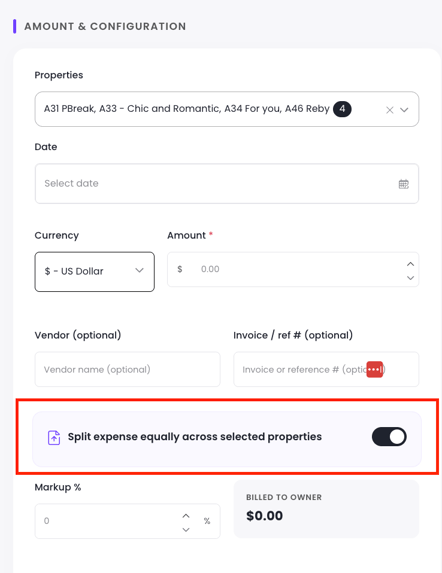
- CSV import — Import expenses in bulk via a structured CSV template.
- Credits — Add a credit to an owner's account for reimbursements, income events, or corrections.
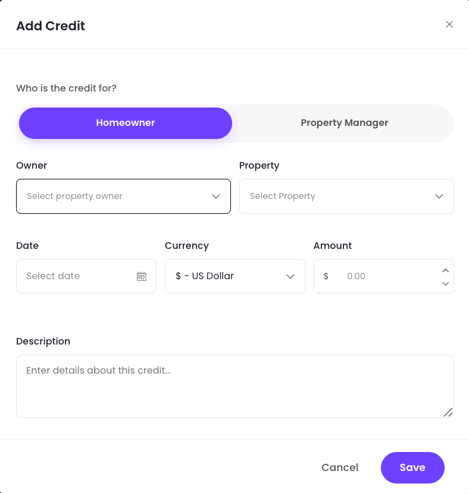
- Adjustments — Modify an existing entry to correct amounts, reallocate costs, or reconcile discrepancies.
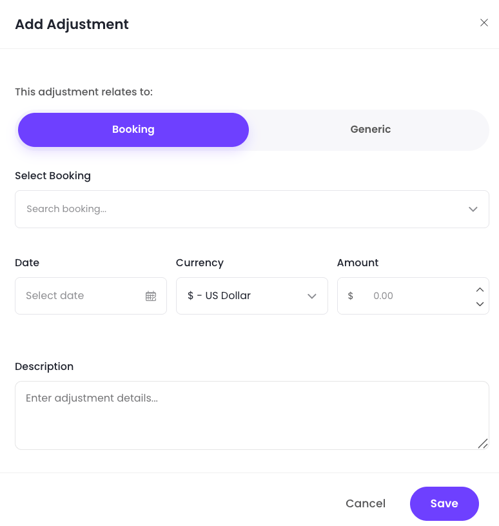
→ Tracking and Managing Expenses
How it all fits together
Business Model (define once, reuse)
↓
Owner Agreement (per property, uses Business Model)
↓
Auto-generated Statements (per period, uses Agreement)
↓
Transactions (expenses, credits, adjustments feed into statements)
The design is intentionally layered: your Business Model handles the math, your Agreement handles the contract, and your Statements and Transactions handle the output. Change something at the Business Model level and it cascades forward — without ever touching statements that have already been sent.
A note on legacy agreements
Agreements and statements created before the accounting upgrade are preserved and labeled as Legacy in the system. They remain readable and are not reprocessed through the new calculation engine. Legacy statements display a note indicating they were generated before the system upgrade.