
Expenses
What's new in the expense form
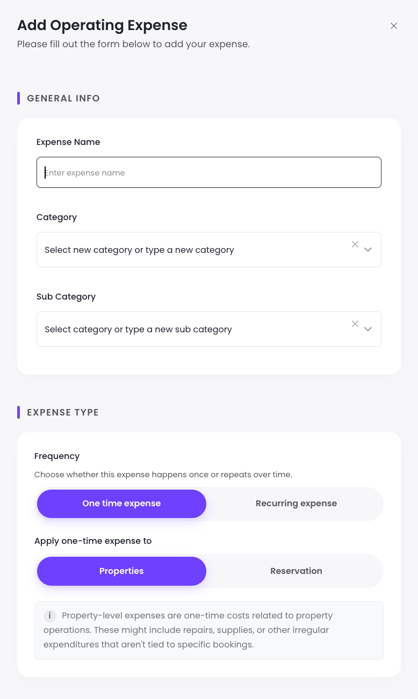
When you click + Add Expense (from Accounting → Transactions), you'll find an enhanced form with the following new fields:
Category (required) Select from a preset list of expense categories:
- Cleaning service
- Maintenance & repairs
- Supplies & consumables
- Utilities
- Insurance
- Pest control
- Landscaping / pool
- Rental Guardian fee
- Technology fee
- Other (owner-chargeable)
- Other (PM-absorbed)
You can also type to create a custom category. The category you select automatically sets the default attribution (see below).
Vendor (optional) Record the vendor or contractor name for reference and audit purposes.
Invoice / reference number (optional) Log the invoice number or any reference that ties back to your records or the vendor's paperwork.
Attribution (auto-set, overridable) Determines whether the expense appears on the owner's statement or is absorbed internally by your management company.
- Owner — The expense is charged to the owner and appears on their statement and in the Owner Dashboard.
- PM — The expense is internal. The owner never sees it.
Most categories default to Owner attribution. Rental Guardian fee and Technology fee default to PM. You can override the default for any expense.
Show on owner statement (visible when Attribution = Owner) Checked by default. Uncheck this to record an expense internally without showing it to the owner — useful for tracking costs that you're absorbing as a goodwill gesture without removing it from your records.
Markup % (optional) Enter a markup percentage to bill the owner more than your actual cost. A live preview shows the owner-billed amount as you type. Markup is never visible to the owner — they see only the final billed amount on their statement.
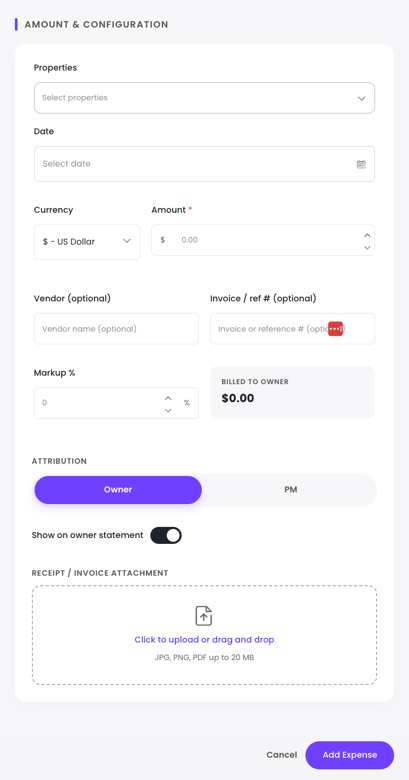
Example: You paid a contractor $200 and want to apply a 15% markup. Enter 15 in the Markup field. The owner is billed $230. Their statement shows $230 — no mention of markup.
Applying an expense to multiple properties
The property selector in the expense form is now a multi-select. You can add the same expense to several properties at once.
Split toggle (appears when 2+ properties are selected)
- Split OFF (default): The full amount is applied to each property independently. A $100 expense added to 4 properties records $100 per property.
- Split ON: The total amount is divided equally across all selected properties. A $300 expense across 3 properties records $100 per property.
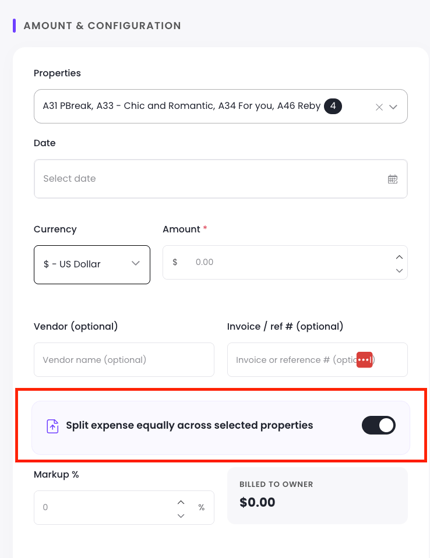
A live preview shows the per-property breakdown as you adjust the amount or selection. If the split creates a rounding remainder (e.g., $100 ÷ 3 = $33.33 with $0.01 left over), the remainder is added to the first property in the list. You can also click any per-property amount to override it manually, provided all amounts still sum to the total.
Attaching receipts
Attach documentation directly to any expense. Accepted file types: JPG, PNG, PDF. Maximum size: 20 MB per file.
You can attach a receipt at the time of creating the expense, or add it later directly from the expense row without opening the full form. Multiple receipts per expense are supported (e.g., a photo of the damage plus the contractor's invoice).
What owners see: If a receipt is marked owner-visible, they'll see a paperclip icon on that expense line in their dashboard and can click to open the file. The "Include receipts as attachments" button at the bottom on the right side of the statement will attach the files to the statement sent to the owner.
Receipts on split expenses: When you attach a receipt to a multi-property expense, the same file is referenced across all the individual expense records created — it's never uploaded multiple times.
Editing and deleting expenses
Open statement period: All fields are editable. Receipts can be added or removed at any time.
Finalized/locked statement period: Amount, description, category, and attribution are read-only. Receipts can still be added or removed after finalization (they're documentary and don't affect financial figures).
Deleting an expense: Available when the statement period is open. Expenses are soft-deleted — removed from calculations and the UI, but retained in the database for audit purposes. To delete an expense in a finalized period, you must first reopen the statement.
Recurring expenses: When deleting a recurring expense, you'll be asked:
- Delete this month only — removes the current instance only; recurrence continues
- Delete this and all future months — stops the recurrence going forward; past instances are untouched
- Delete all — removes current, stops future, and soft-deletes all past unlocked instances
Credits
A credit adds a new entitlement to an owner's account — money they're owed or income that needs to be recorded.
When to use a credit:
- Passing through a vendor refund to the owner
- Reimbursing the owner for out-of-pocket expenses
- Recording income that came in outside normal channels (e.g., a direct cash payment)
- Correcting an underpayment from a prior period
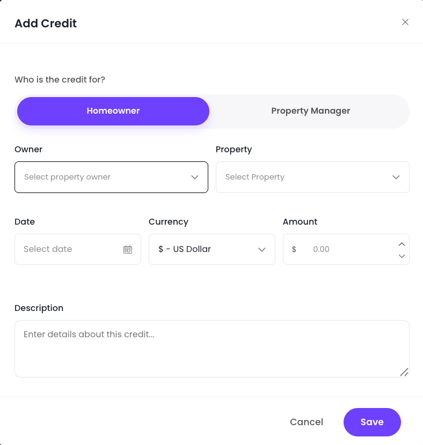
Credits appear as positive line items on the owner's statement and are included in the net payout calculation.
→ See also: Understanding Credits vs. Adjustments vs. Expenses
Adjustments
An adjustment modifies an existing entry — correcting, reconciling, or reallocating a value that was already recorded.
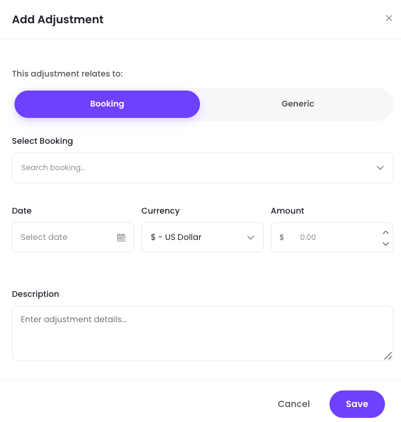
When to use an adjustment:
- Correcting a booking amount that was imported incorrectly
- Fixing a management fee that was applied at the wrong percentage
- Reconciling a payout discrepancy between the statement and the bank transfer
- Retroactively correcting a utility bill that was entered with the wrong amount
- Reallocating a shared cost that was assigned to the wrong property or owner
Adjustments require a clear reason and timestamp so you always have a traceable record of what changed and why.
Adjustments don't have to be tied to a booking. They can apply to any entry in the owner's ledger — utilities, management fees, reserve balances, insurance allocations, and more.
→ See also: Understanding Credits vs. Adjustments vs. Expenses
Quick reference: which action to use
|
Situation |
Action |
|---|---|
|
Recording a contractor invoice |
Expense |
|
Passing a vendor refund to the owner |
Credit |
|
Owner paid out of pocket for a repair |
Credit |
|
Booking was imported with the wrong amount |
Adjustment |
|
Management fee % was applied incorrectly |
Adjustment |
|
A shared cost was assigned to the wrong property |
Adjustment |
|
Income came in outside a booking |
Credit |
|
A utility bill was entered at the wrong amount |
Adjustment |
The rule of thumb: Credits and expenses create new entries. Adjustments fix existing ones.