
Quick Navigation Index
What Is a Rental Contract in Jurny?
A rental contract is the agreement your guests must accept when booking directly through your Jurny-powered website.
Typically, a rental contract includes:
-
House rules
-
Guest responsibilities
-
Damage and liability clauses
-
Insurance or protection details
-
What is and isn’t allowed at the property
Note: Rental contracts are automatically applied to direct bookings only.
They are not sent automatically for OTA bookings (Airbnb, Booking.com, etc.).
Important Things to Know Before You Start
-
Guests booking directly will be required to agree to your default rental contract
-
OTA bookings do not receive this contract through automated messages
-
If you want guests to sign the contract digitally, you can enable this using the Autohost integration
Click here to learn more about Autohost.
How to add a Rental Contract?
You can add a rental contract from the Setup section of your account. Follow these steps to add your rental contract to Jurny:
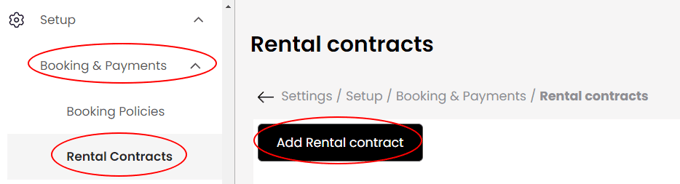
Step 1: Navigate to Rental Contracts
-
Go to Setup
-
Click Booking & Payments
-
Select Rental Contracts
-
Click Add Rental Contract
Step 2: Complete the Rental Contract Fields
Fill out the following fields:
Contract Name
-
Internal name for your reference
-
Example: Standard Rental Agreement or Luxury Property Contract
Description
-
Short summary of what the contract includes
-
Example: house rules, insurance terms, guest responsibilities
Default
-
Enable this option if you want this contract to apply to all units by default
-
You can still override it per listing if needed
Upload Contract
-
Upload your contract as a PDF file
-
Make sure the document is final and legally reviewed
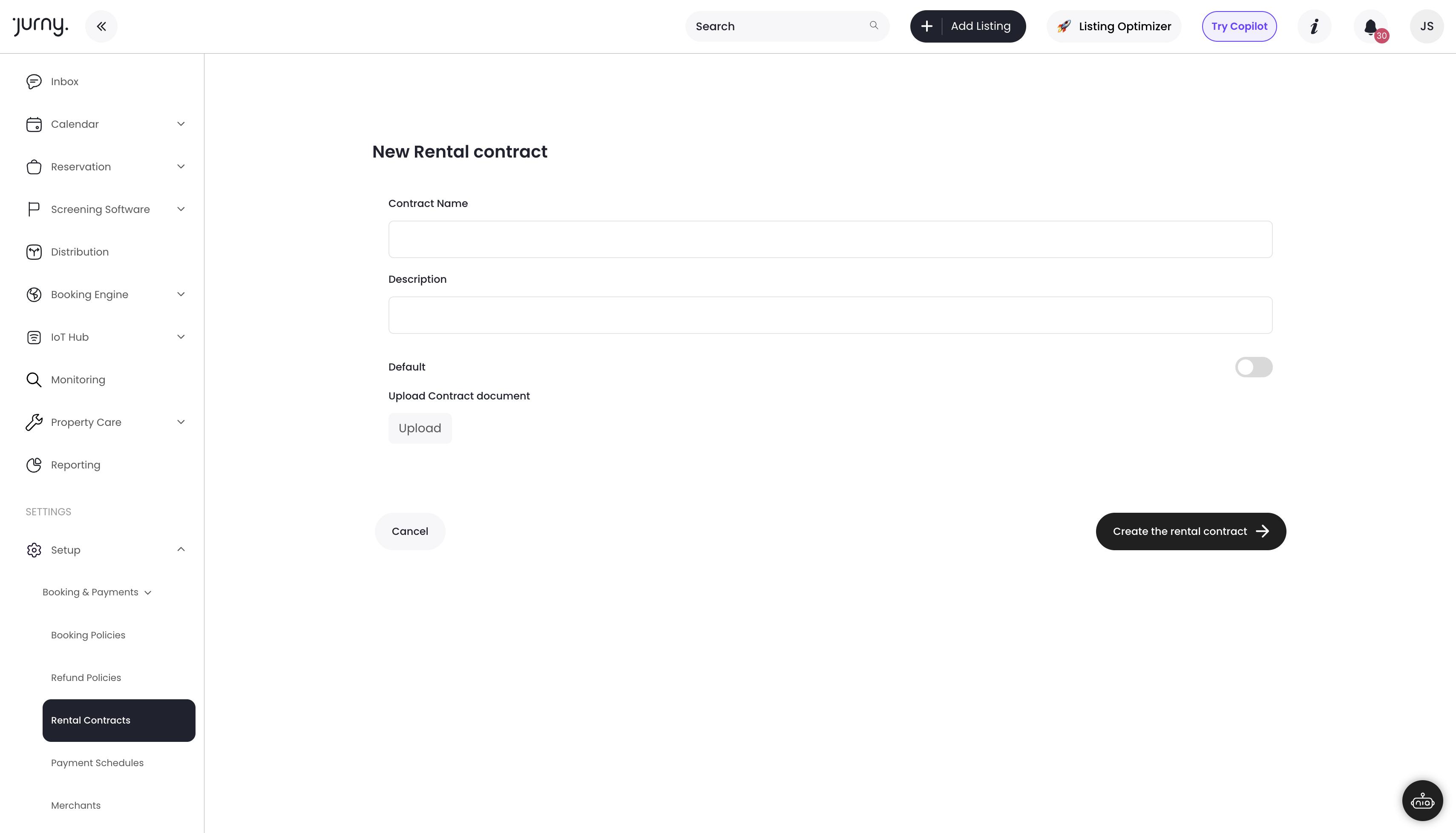
Once completed, save the contract.
Reviewing Your Rental Contract
Reviewing your contract after publishing is strongly recommended.
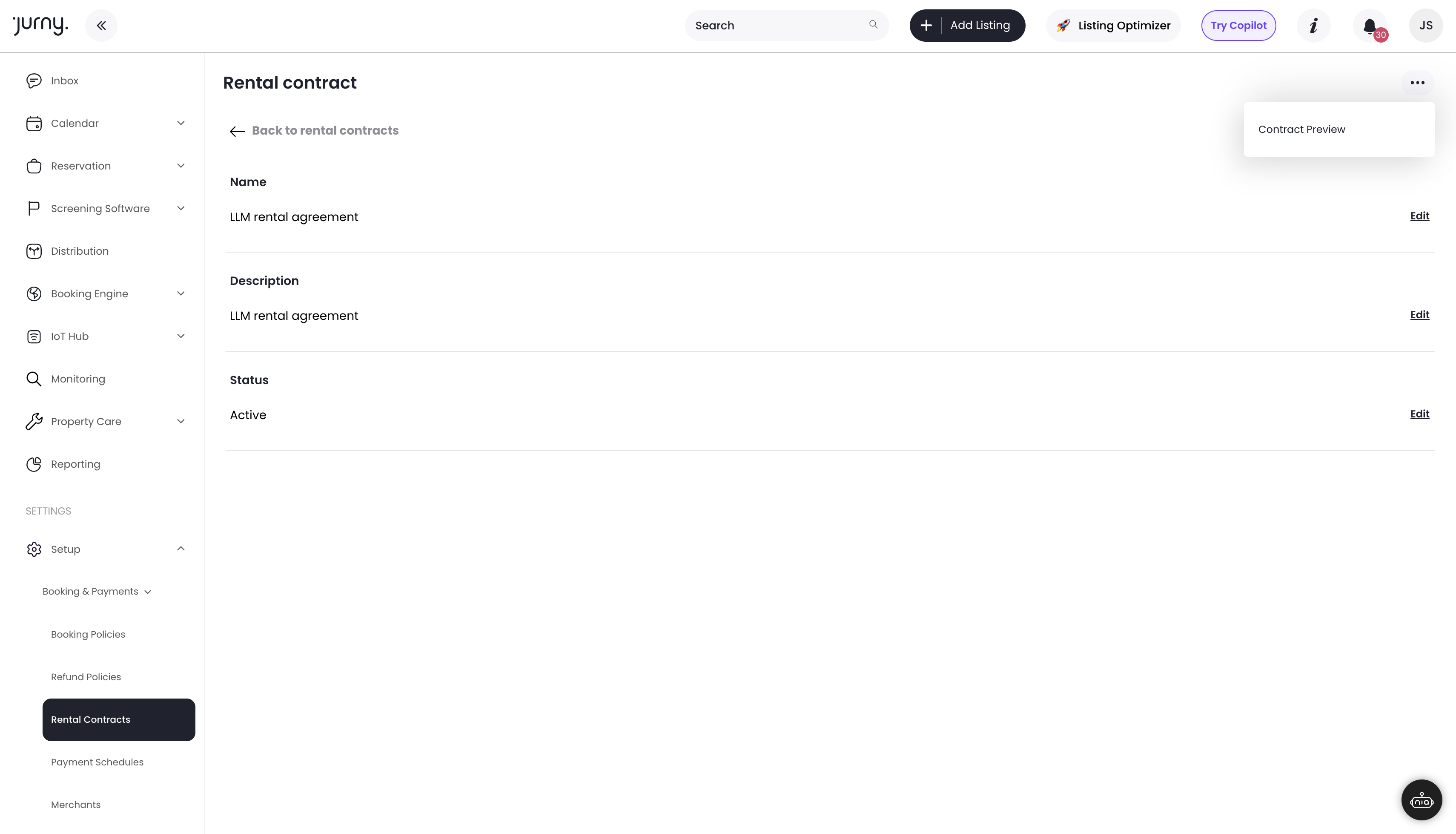
How to View the Contract
-
Go back to Rental Contracts
-
Click on the contract you created
-
Click on the three dots on the right hand side
-
Select Contract Preview
The PDF will open in a new browser tab so you can:
-
Confirm formatting
-
Verify content accuracy
-
Ensure the correct version is uploaded
Tip: Always review the contract after uploading to avoid sending outdated or incorrect documents to guests.
Archiving or Replacing a Rental Contract
If you need to update or replace a contract:
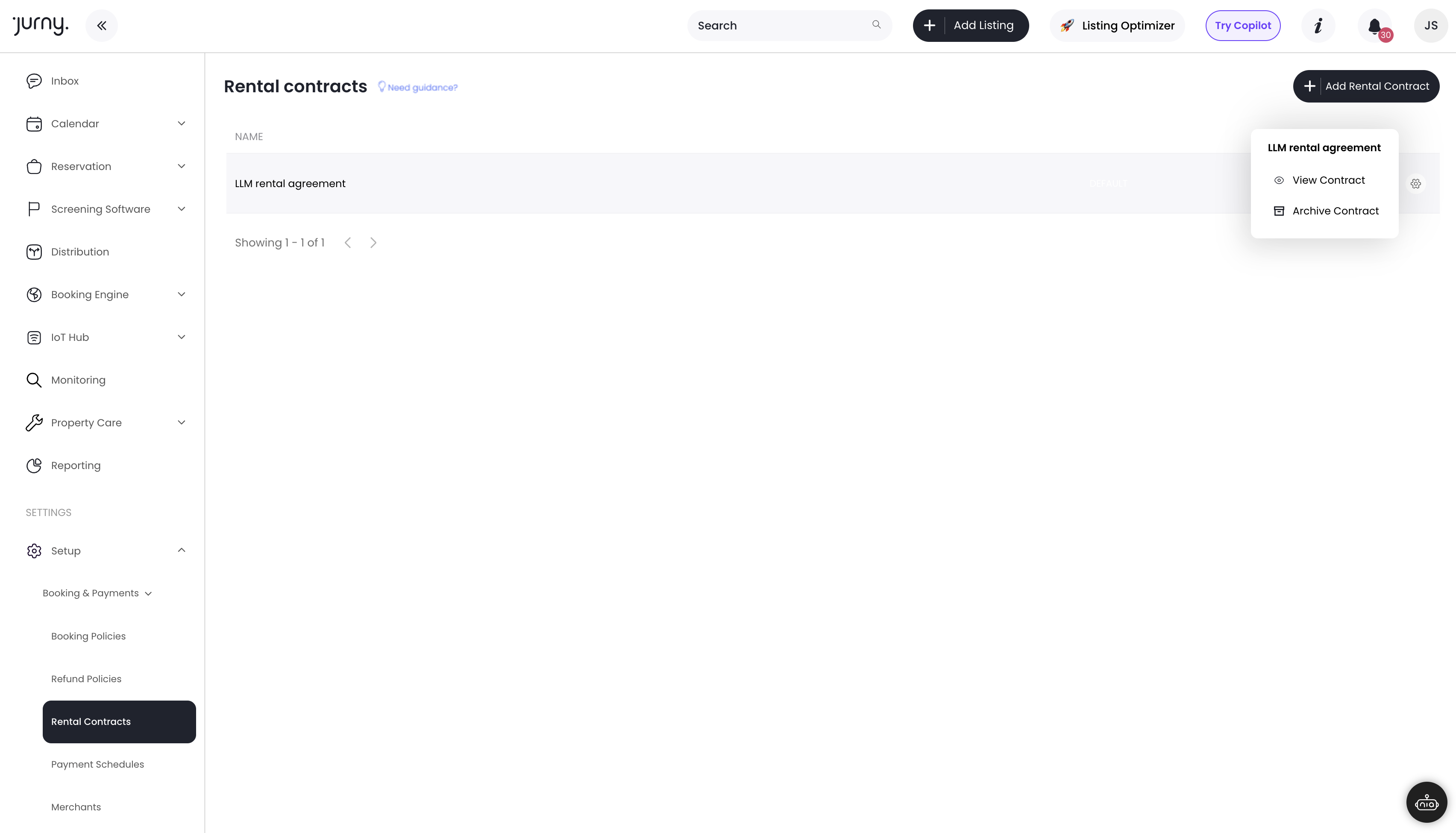
How to Archive a Contract
-
Go to Setup → Booking & Payments → Rental Contracts
-
Click the gear icon next to the contract
-
Select Archive Contract
Once archived:
-
The contract is no longer active
-
You can create a new version following the same steps above
🎉 You’re All Set!
You’ve successfully added a rental contract to your Jurny account.
This contract will:
-
Prevent disputes
-
Set clear expectations
-
Protect you legally
-
Create a smoother booking experience
If you need help or have any questions, don’t hesitate to reach out.
Contact your Customer Success Manager or our support team at support.jurny.com – we’re happy to assist.