
Quick Navigation Index
To easily navigate through this guide, click on any of the sections below to jump directly to the information you need:
Before You Begin
To ensure a smooth import process:
✅ Log in to your Airbnb account in a separate browser tab
✅ Make sure you know whether you want a partial or full connection
How to Add a Listing in Jurny
-
From your Jurny dashboard, go to the top bar menu.
-
Click on “Add Listing.”
-
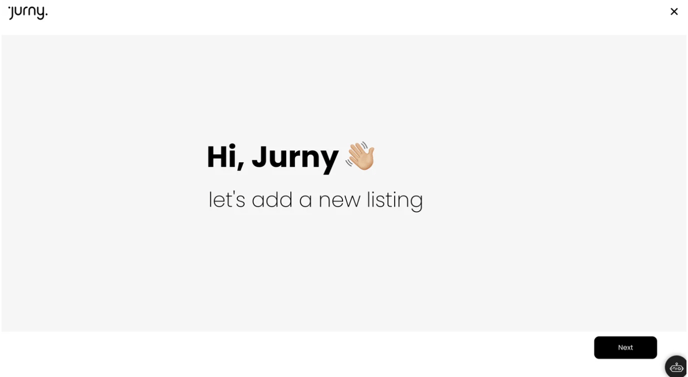
Click Next when prompted to choose how to add your listing.
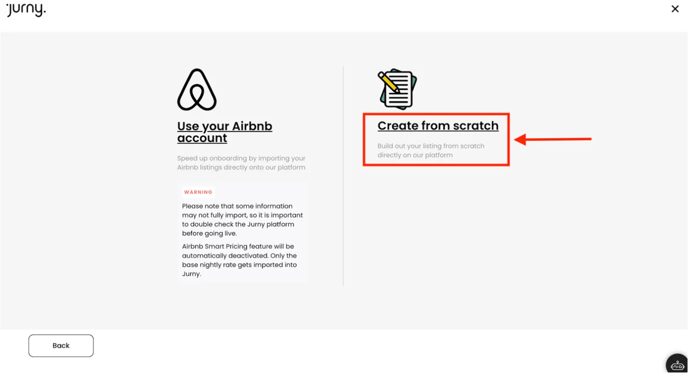
You'll now see two options:
Option 1: Create a Listing from Scratch
Prefer to build your listing manually?
-
Choose “Create from Scratch.”
-
Follow the on-screen steps to add:
-
Listing name
-
Property details
-
Amenities
-
House rules
-
Tip: This is useful if you're setting up a new property not listed on Airbnb.
Option 2: Import Listings from Airbnb
Have existing Airbnb listings? Great! Let’s bring them into Jurny:
-
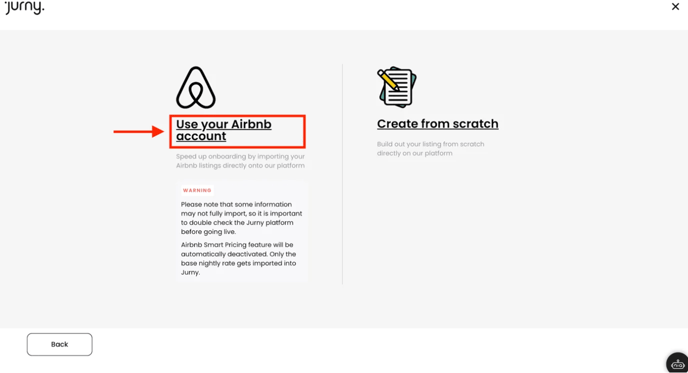
Choose “Use Your Airbnb Account”
-
Click “Connect Your Airbnb Account”
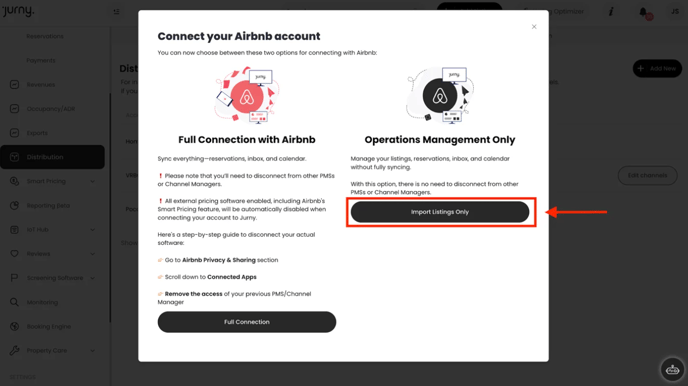
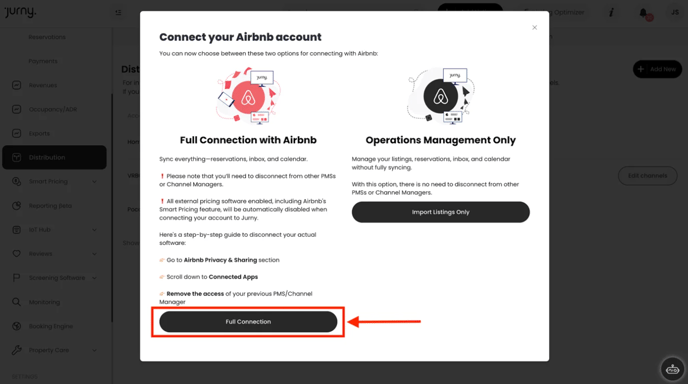
You’ll now choose between two connection types:
Partial Sync (Operations Management)
This option allows you to import your Airbnb listings without disconnecting from your current PMS. It’s ideal if you want to start your Jurny Onboarding Process while managing other aspects of your listings in your current PMS.
What Jurny imports:
-
Listings
-
Reservations
-
Inbox messages
-
Calendar availability
❗ Note: Pricing settings are NOT imported. You'll need to manage pricing outside of Jurny.
Full Sync (Complete Control)
Ready to fully manage your listings in Jurny?
This option fully transfers your Airbnb listings to Jurny, giving you complete control in one platform. However, you must disconnect from any other Property Management Software (PMS) before moving forward.
-
Select “Full Connection.”
-
You must disconnect your Airbnb account from any other PMS before proceeding.
What Jurny imports:
-
All past reservations (up to 2 years)
-
Guest messages and reviews
-
Pricing settings
-
Listing details, policies, and amenities
⚠️ Important: We recommend temporarily disconnecting Airbnb from Jurny after the import to avoid issues during onboarding.
➡️ Need help disconnecting from your current PMS? Follow this guide →
You don't want to disconnect from your current PMS? Don't worry click here to learn how to partially import them.
Authorizing Your Airbnb Connection
After choosing your sync type, you'll be taken to an Airbnb authorization page.
-
Review Airbnb’s Terms of Service
-
Review the permissions Jurny is requesting
-
Click “Allow”
You’ve now connected your Airbnb account to Jurny.
Importing Your Listings
Now let’s bring the listings in:
-
In Jurny, find the “Airbnb Distribution Account”, click on it
-
Click in the “Import Listing” button next to each listing available on Airbnb
-
Once complete, you’ll see a success message
Need to import more?
Click “Import Other Listing” and repeat for each property.
Final Steps & Going Live
Imported listings go live automatically, so make sure you're ready.
Not ready to go live yet? Disconnect your Airbnb account temporarily.
➡️ Here’s how to pause syncing during onboarding →
✅ Before finishing:
-
Review all listing details and descriptions
-
Double-check pricing, amenities, and booking policies
Next Step in the Onboarding Process
You’re ready for:
➡️ Step 3: Review and Finalize Your Listings →
Make sure each listing is complete, accurate, and guest-ready.
If you need help or have any questions, don’t hesitate to reach out. Contact your Customer Success Manager or our support team at support@jurny.com – we’re happy to assist.