
What is the Guest Web App?
The Jurny Guest Web App is more than just a login page—it’s a complete guest experience hub.
Through it, guests can:
- 📘 Access guidebooks for their stay (house rules, local recommendations, check-in instructions, and more)
- 🏡 View their reservations in real time
- 🔁 Book the property again directly, like a lightweight booking engine
- 📱 Enjoy a seamless mobile-friendly experience under your custom domain
Once activated, the Guest Web App becomes the central digital touchpoint between the property and the guest, improving communication and encouraging repeat bookings.
Tip: Think of it as your “digital concierge + booking portal” in one place.
Step 1: Choose the Guest App Domain
Start by choosing where you want your Guest Web App hosted.
You can use your own domain or a Jurny domain. If you decide to use a Jurny domain, make sure you ask your Onboarding Specialist or Customer Success Manager to activate it for you.
Examples:
- guests.theirdomain.com
- guestexperience.theirdomain.com
- guestapp.theirdomain.com
- companyname.guestapp.jurny.com
Note: Keep it simple and easy for guests to remember—this is a link they will reuse often.
Step 2: Create the Website in Booking Engine
Now configure the Guest Web App in your Jurny account.
- Go to Booking Engine
- Click Website
- Select Create New Website
- Add:
- Website name (e.g., “Guest Experience Portal”)
- Assign the correct buildings/properties
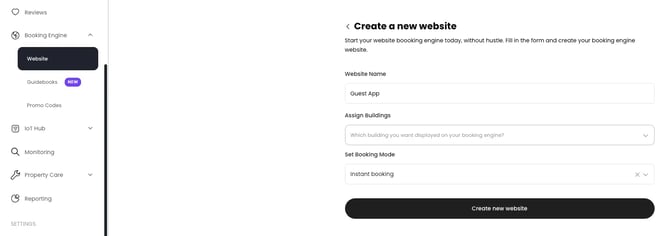
Once created, add the custom domain you selected:
.webp?width=670&height=125&name=image%20(1).webp)
Step 3: Configure DNS Settings
Here are Jurny's DNS instructions so you can connect your domain to Jurny.
DNS Setup Instructions
- Type: A
- Host/Name: @
- Value: 192.18.142.233
- TTL: 3600
Important Reminders
- Remove any existing A record before adding this one
- This applies only to the Guest Web App
- Do NOT modify DNS for the main website
- If using a Jurny domain, no DNS setup is required
Step 4: Activate the Domain with CSM
Once DNS is correctly configured:
- Confirm DNS propagation is complete
- Contact your Customer Success Manager (CSM)
- Request Guest Web App domain activation
Note: The app will not be publicly accessible until activation is completed.
Step 5: Test Guest Access & Experience
Before going live, always test the full guest journey.
Checklist:
- Create a test booking
- Log in using guest phone number
- Confirm reservation appears correctly
- Verify guidebooks are visible
- Check rebooking flow works properly
- Test on mobile and desktop
Tip: Always validate the experience as if you were the guest—this is the final quality check.
Guidebooks Reference
The Guest Web App is tightly connected to your Guidebooks, which are displayed directly inside the guest experience.
Guidebooks Guide Link: How to create Guidebooks
Note: Make sure guidebooks are properly assigned to each property so guests see the correct content when they log in.
If you need help or have any questions, don’t hesitate to reach out. Contact your Customer Success Manager or our support team at support.jurny.com – we’re happy to assist.