
About Razorpay
Razorpay is a leading payment gateway based in India, trusted by 10 million+ businesses. It enables merchants to accept, process, and disburse payments through a single platform. Before setting up your integration, here's a quick overview of what Razorpay offers.
Official website: https://razorpay.com
Key Capabilities
-
Payment collection — Accepts credit/debit cards, UPI, net banking, digital wallets, EMI, and Pay Later.
-
Refunds — Supports full and partial refunds, initiated directly from the Razorpay dashboard or via API.
-
Pre-authorization (Auth & Capture) — Allows you to authorize a card and capture funds later, useful for security deposits and holds.
-
Fraud detection — AI-powered risk engine with PCI-DSS compliance.
Supported Markets & Countries
Razorpay's merchant accounts are available for businesses registered in India, the United States, Malaysia, and Singapore. International card payments are accepted from 160+ countries, supporting 100 major currencies. Regional payment methods include Giropay (Germany), Sofort (Europe), Trustly (UK/Europe), and POLi (Australia).
Note: Razorpay's primary market is India. If your business is registered outside India, check Razorpay's international payments page for the latest availability.
What You'll Need Before You Start
Before connecting Razorpay to Jurny, make sure you have:
- An active Razorpay account
- Access to your Razorpay account settings
- Admin access to your Jurny account
Connect Razorpay to Jurny
Follow these steps to add Razorpay as a merchant in Jurny:
- Log in to your Jurny account.
- Navigate to Setup.
- Select Booking & Payments.
- Click Merchants.
- Select Add New.
- Choose Razorpay Account.
Jurny will now prompt you to enter your Razorpay Key ID and Key Secret.
You'll need to generate these credentials in your Razorpay account before proceeding.
Generate Your Razorpay API Credentials
To generate your Key ID and Key Secret:
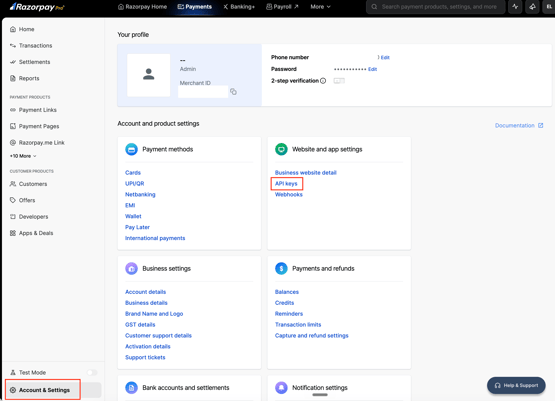
- Log in to your Razorpay account.
- Go to Settings.
- Under Website and App Settings, select API Keys.
- Navigate to API Keys & Integration.
- Generate a new API Key.
Razorpay will display:
- Key ID
- Key Secret
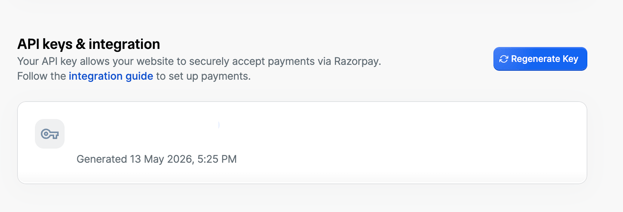
Important: Razorpay only displays the Key Secret once. Be sure to save a secure copy before leaving the page. If you lose your Key Secret, Razorpay cannot retrieve it for you. You will need to generate a new set of API credentials and update them in Jurny.
Complete the Connection in Jurny
Once you've copied your Key ID and Key Secret:
- Return to Jurny.
- Paste the Key ID into the corresponding field.
- Paste the Key Secret into the corresponding field.
- Save the merchant configuration.
Your Razorpay account should now be successfully connected to Jurny.
Note: If you regenerate your API credentials in Razorpay at any point, you must also update the credentials in Jurny to maintain payment processing functionality.
Assign Razorpay to Your Listings
After connecting Razorpay, you'll need to assign the new merchant to your listings.
For individual listings:
- Open the listing.
- Navigate to the Guest Book & Policies tab.
- Select the newly connected Razorpay under the Merchant field.
- Save your changes.
For multiple listings:
- Use Jurny's Bulk Edit feature.
- Select the listings you want to update.
- Assign the Razorpay merchant to all selected listings.
- Save your changes.
Important Razorpay Account Configuration
To ensure successful payment processing, verify the following settings in your Razorpay account:
1. Enable International Card Acceptance
Make sure your Razorpay account is configured to accept international card payments if you expect guests from outside your primary operating region. Here's a guide on how you can activate this in your Razorpay account.
- International Cards Guide
Add the following webhook URL in your Razorpay account:
This webhook allows Jurny and Razorpay to communicate payment events and keep booking information synchronized.
3. Add and Verify Your Website URL
Add the following website URL to your Razorpay account:
This website must be approved by Razorpay before payments can be processed successfully. When working with Razorpay's review or support team, inform them that:
- https://mos.jurny.com/ is a booking engine.
- The site does not require a login for validation purposes.
- Guests access the booking engine directly for reservations and payments.
Razorpay may occasionally reject or delay website approval if their team is not informed that the domain is a booking engine. Proactively communicating this information can help prevent approval issues and accelerate onboarding.
Transaction Fees
-
Domestic transactions: 2% per transaction + 18% GST. No setup fee or annual maintenance charge.
-
International cards: Up to 3% + GST.
-
International bank transfers (ACH/SEPA/SWIFT): 1% + GST.
-
International wallets & local methods: 3.5% + GST.
Troubleshooting & Common Issues
My payments are not processing.
Verify that:
- Your Key ID and Key Secret are entered correctly.
- Your API credentials have not been regenerated.
- The webhook URL has been configured.
- Your website URL has been approved by Razorpay.
I lost my Key Secret.
Generate a new API key set in Razorpay and update the credentials in Jurny.
My international guests cannot pay.
Confirm that international card acceptance is enabled in your Razorpay account.
Congratulations! 🎉
Your Razorpay account is now connected to Jurny, giving you another powerful way to accept guest payments and streamline your booking experience.
If you need help or have any questions, don’t hesitate to reach out. Contact your Customer Success Manager or our support team at support.jurny.com – we’re happy to assist.