
Build Your Seasonal Strategy
With Seasonal Pricing and Seasonal Discounts, you can create a strategy that matches the way your business actually operates.
-
Increase rates when demand is high.
-
Offer discounts when demand slows down.
-
Encourage longer stays.
-
Reward guests who book early.
-
Capture last-minute demand.
-
Target specific properties.
-
Choose exactly which OTA channels to use.
Whether you're preparing for Christmas, planning summer rates, filling a low-demand period, or creating a special promotion, you have the flexibility to build a strategy that works for your properties.
Seasonal Prices
Ready to make your rates work harder during peak seasons?
Seasonal Prices give you the flexibility to set a specific nightly price for a specific time of year. Whether you're preparing for Christmas, summer, a local event, or a quieter season, you can build pricing rules that match your strategy.
And the best part? You can create multiple pricing periods within one seasonal price
You can even make the weekend rate different from the weekday rate.
Let's walk through it!
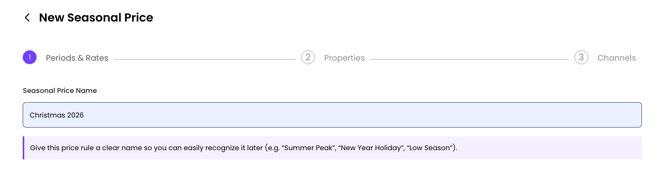
1. Name Your Seasonal Price
Give your pricing rule a clear name so you can easily recognize it later.
2. Set Your Pricing Period
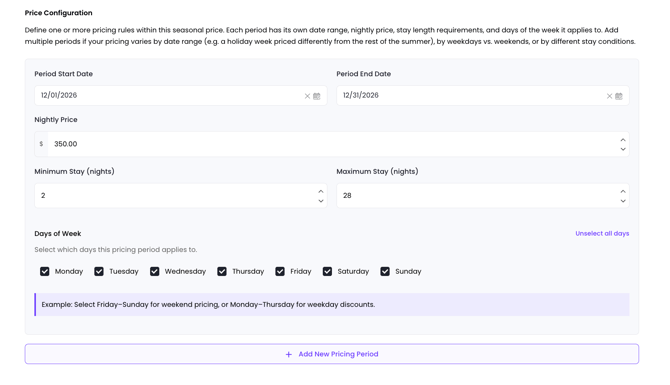
Choose the Start Date and End Date for when the seasonal price should apply.
3. Set Your Nightly Price
Enter the nightly rate you want to charge during this period.
You can also set:
- Minimum Stay — The minimum number of nights required.
- Maximum Stay — The maximum number of nights allowed for the rule.
4. Choose Your Days
Select which days of the week the price should apply to. Choose individual days or select all days.
5. Add More Pricing Periods
Need different rates throughout the season?
Select + Add New Pricing Period and create another period with its own dates, price, stay requirements, and days.
Example:
- December 1–24 → $350/night
- December 25–31 → $450/night
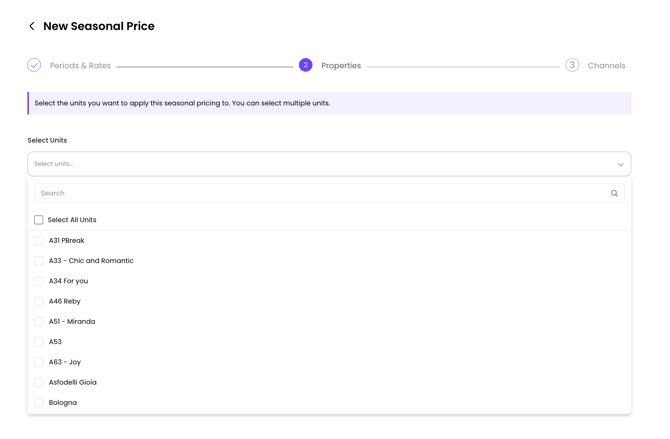
6. Select Your Properties
Choose which properties should use this seasonal pricing rule. You can apply it to specific properties instead of your entire portfolio.
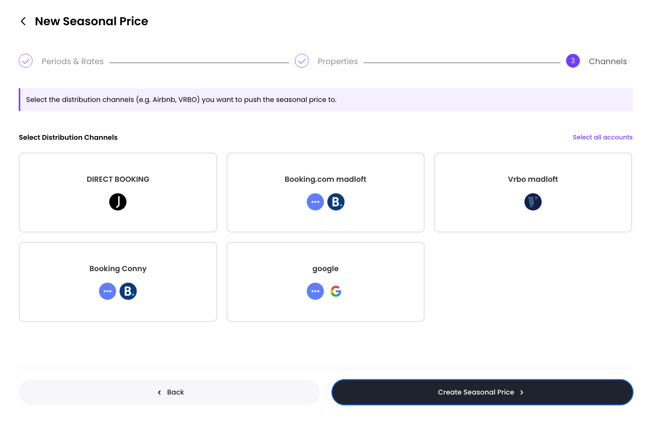
7. Select Your OTA Channels
Choose which OTA accounts should receive the seasonal pricing. This lets you control exactly where the new pricing is applied.
Seasonal Discounts
Want to fill more nights, encourage longer stays, or reward guests who book early?
Seasonal Discounts are built for exactly that.
The setup works similarly to Seasonal Prices: choose your date range, decide when the discount applies, and then select the properties and OTA channels.
But instead of simply setting a new nightly rate, you can create smart discount incentives based on the guest's booking behavior.
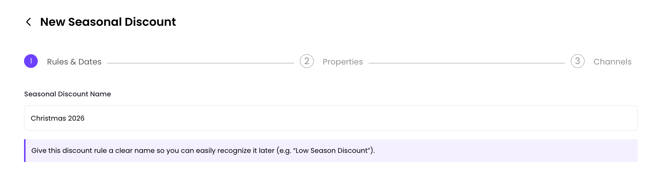
1. Name Your Seasonal Discount
Start with a name that tells you exactly what the promotion is about.
2. Choose Your Discount Period
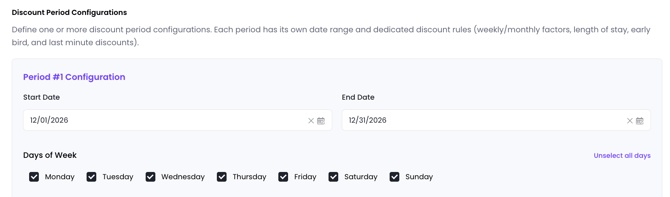
Set the Start Date and End Date for your discount configuration. You can also choose the specific days of the week when the discount should apply.
Want a weekend-only promotion?
Select:
Friday + Saturday + Sunday
Want the discount every day?
Select all seven days.
3. Add Weekly & Monthly Incentives
Seasonal Discounts give you additional ways to encourage longer bookings.
-
Weekly Price Factor
Set a percentage for eligible weekly stays.
-
Monthly Price Factor
Set a percentage for eligible monthly stays.

These tools are great when your goal is to turn shorter bookings into longer stays.
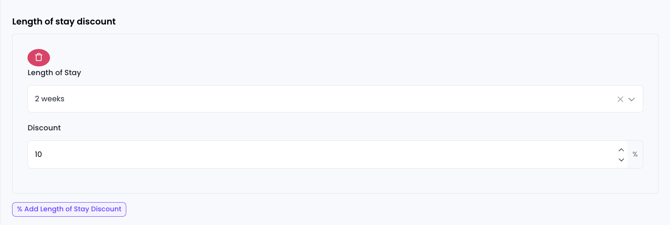
4. Length of Stay Discount
Want guests to stay longer? Create a discount based on the length of their stay.
You can add additional Length of Stay discounts if you'd like to create different incentives for different stay lengths.
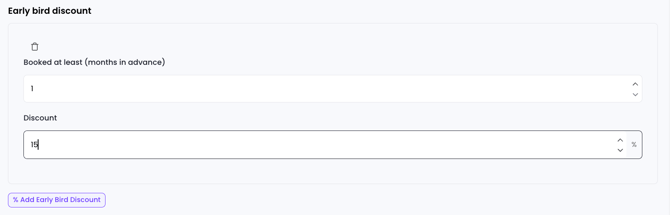
5. Early Bird Discount
Give guests a reason to plan ahead!
Early Bird discounts can help you secure bookings earlier and build occupancy further into the future.
Need more than one early-bird offer?
Select + Add Early Bird Discount.
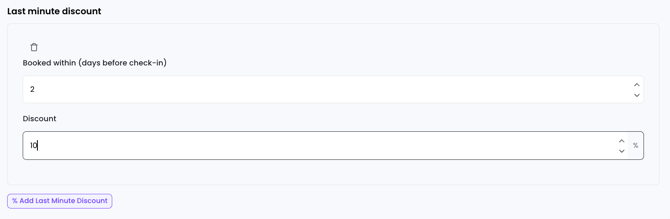
6. Last Minute Discounts
Sometimes you have availability approaching the check-in date. That's where Last Minute Discounts can help.
7. Add Period Configuration
Just like Seasonal Prices, you're not limited to one configuration.
Select + Add Period Configuration to create another set of discount rules.
Each configuration can have its own:
- Date range
- Days of the week
- Weekly price factor
- Monthly price factor
- Length of Stay discounts
- Early Bird discounts
- Last Minute discounts
This lets you build a complete seasonal promotion without having to create a separate discount for every variation.
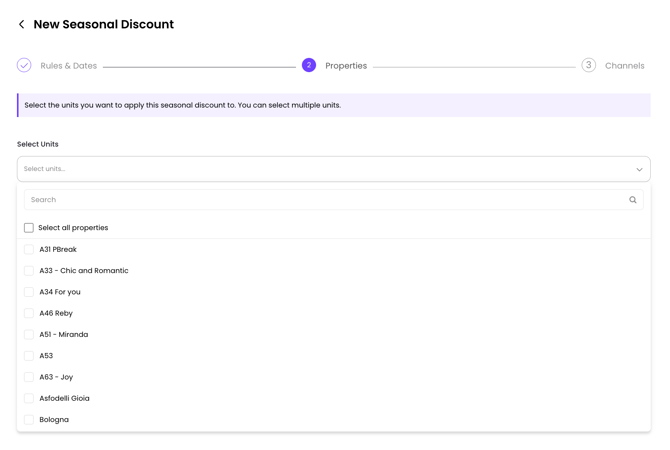
8. Choose Your Properties
Once your discount strategy is ready, choose which properties should receive it.
For example, you might apply your Low Season Discount only to properties that typically experience lower demand during March.
This gives you the flexibility to create a promotion for the properties that need it most.
9. Choose Your OTA Channels
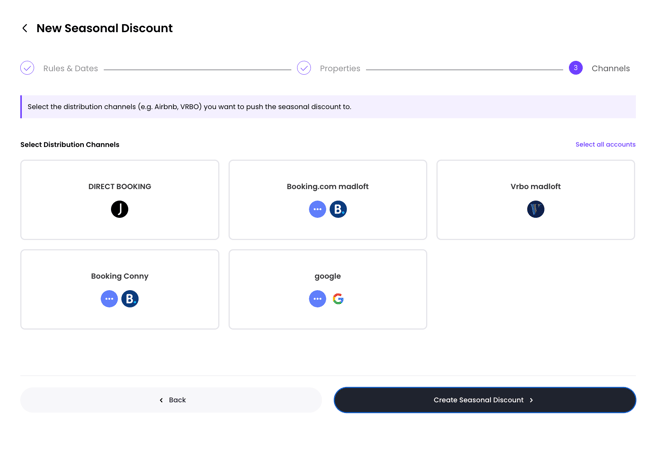
Finally, choose which OTA accounts or channels should receive the seasonal discount.
You control exactly where the promotion is applied.
Select the channels you want the discount to be available on, then continue to the next step.
Seasonal Prices or Seasonal Discounts?
Not sure which one to use?
Here's the easy way to think about it:
Seasonal Price = Set the Rate
Use Seasonal Prices when you know exactly what you want to charge.
Example:
Christmas → $450/night
You control the actual nightly price.
Seasonal Discount = Create an Incentive
Use Seasonal Discounts when you want to encourage specific booking behaviors.
Examples:
Stay 2 weeks → 10% off
Book 1 month early → 10% off
Book within 3 days → 5% off
In short:
Seasonal Prices help you decide what the stay costs.
Seasonal Discounts help you give guests a reason to book.
Ready to make every season count?
If you need help or have any questions, don’t hesitate to reach out. Contact your Customer Success Manager or our support team at support.jurny.com – we’re happy to assist.