
The New Reporting Hub
Jurny’s new Reporting Hub gives you a simpler, more flexible way to view and work with your operational and financial data.
Reports are now organized into clear categories, making it easier to find the information you need.
From the Reporting Hub, you can access:
- Operations reports – Reservations, Upcoming Vacancies, Occupancy, and more.
- Financial reports – Revenue Summary, Property Performance, Expense Summary, Security Deposits, and more.
- Personalized reports – Build your own report using the columns and information that matter most to you.
Available Reports
The Reporting Hub provides a central place to access your available reports.
Reports are grouped by category, and each report can be opened directly from the View report option.
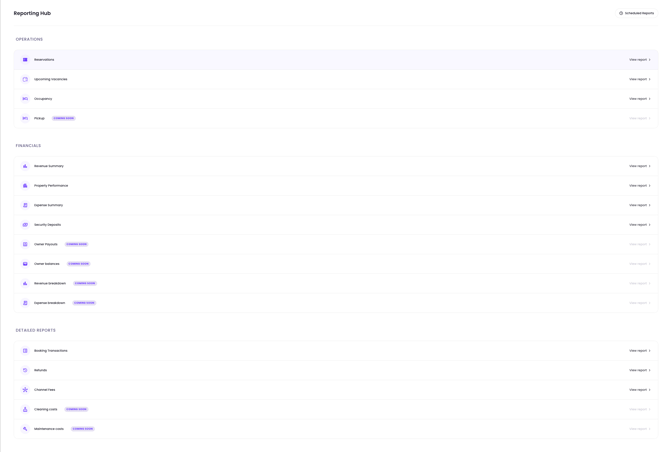
Some additional reports are coming soon and will become available in future updates.
Building a Personalized Report
If the standard reports don't contain exactly what you need, you can create a personalized report.
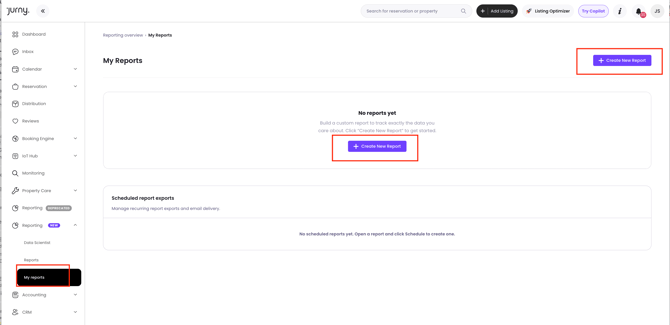
- Open the My Reports tab.
- Click the Create New Report button.
- Enter a Report Name.
- Choose the columns you want to include.
- Arrange the selected columns in the order you prefer.
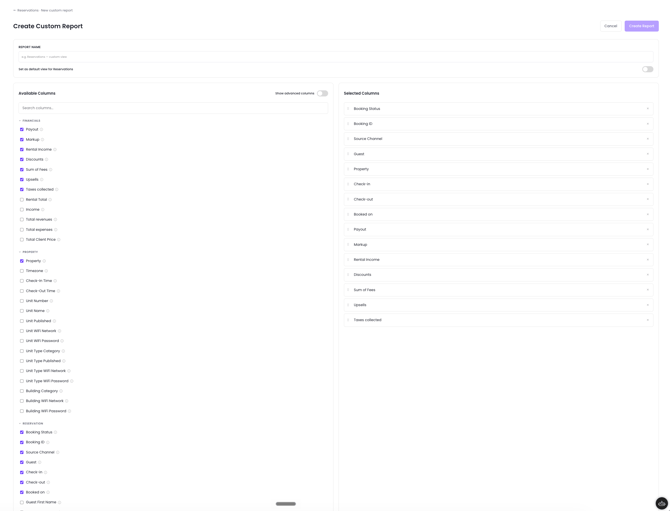
- You can then choose how you want to group the report; it can either be by property, building, unit type, or city.

- Additional filter and condition options are available as well
You can also choose to make your personalized report the default view for that report template.
Customize Filters and Conditions
Use the Filters section to control which records appear in your report.
- Select the units you want to include, or choose all units.
- Click + Add Condition to create a filter.
- Choose the field, operator, and value—for example, Booking Status → Is → Confirmed.
- Add multiple conditions and use AND/OR options to create more specific results.
- Additional filter and condition options are available depending on the field you select.
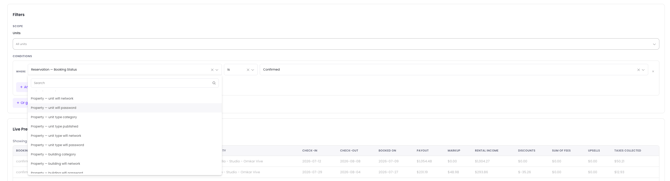
Use the live preview to confirm that your filters return the information you expect before saving the report.
Scheduling Reports
Once you have a report you want to receive regularly, you can schedule it to run automatically.
From the report, click the Schedule button on the upper right side. A sidebar will then appear where you can configure:
- Report name – Give the scheduled report a recognizable name.
- Frequency – Choose Daily, Weekly, Monthly, or Quarterly.
- Delivery time – Select when the report should be generated.
- Report period – Choose the reporting period, such as the previous month.
- Timezone – Select the timezone displayed for the schedule.
- File format – Choose PDF, CSV, or Excel.
- Email delivery – Turn on email delivery if you want the report sent automatically.
- Recipients – Add the email addresses that should receive the report.
- Additional data – Choose whether to include options such as comparison data, charts, and the detailed breakdown.
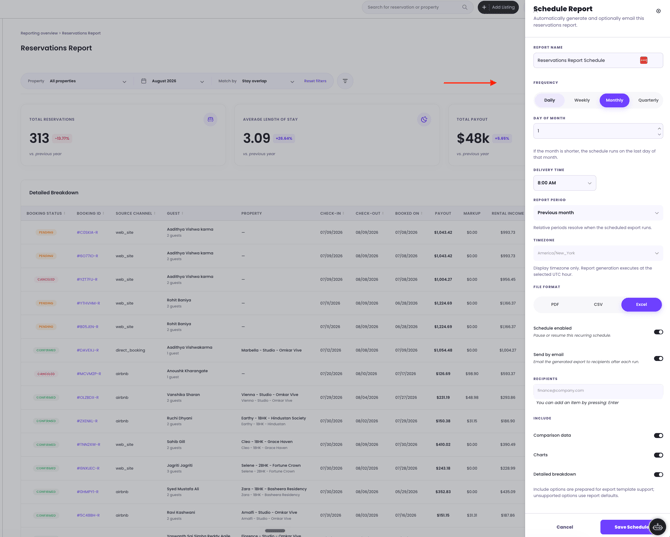
Once everything is configured, save the schedule.
Putting It All Together
The new Reporting Hub gives you three simple ways to work with your reporting data:
- Browse available reports to quickly access common operational and financial information.
- Build personalized reports when you need specific columns, filters, or layouts.
- Schedule reports when you want information generated and optionally emailed to you automatically.
This makes reporting more flexible while giving you more control over exactly what information you see and when you receive it.
If you need help or have any questions, don’t hesitate to reach out. Contact your Customer Success Manager or our support team at support.jurny.com – we’re happy to assist.