
CRM Overview Dashboard
Welcome to your new Jurny CRM command center! The Overview Dashboard gives you a complete snapshot of your guest and contact activity, helping you understand what's happening across your business at a glance.
From one convenient screen, you can monitor key performance metrics, browse your contacts, identify booking trends, and quickly take action. Whether you're checking how many new contacts you've gained, where your bookings are coming from, or how many guests are returning, the Overview Dashboard puts the information you need right at your fingertips.
You can also search your database, add contacts, import historical guest information, scan for duplicates, apply filters, and export your data—all without leaving the CRM.
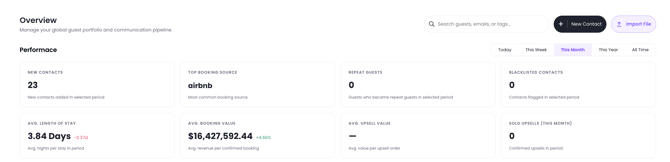
Performance Metrics
The Performance section gives you a quick pulse check on your CRM activity. These metrics help you understand guest behavior, booking performance, and the overall value of your customer database.
Contact List
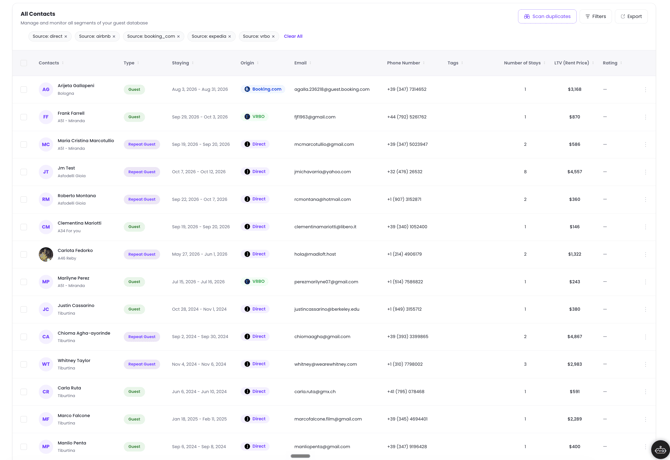
The Contact List gives you a powerful, centralized view of your guest database. Instead of searching through multiple systems or booking platforms, you can see important guest information together in one place.
Use this list to quickly understand who your guests are, where they booked, when they're staying, and how valuable their relationship has been with your business. With search, filters, duplicate scanning, and export tools built in, managing your database becomes faster and much easier.
CRM Actions
- Search – Quickly search for guests, emails, or tags.
- New Contact – Add a guest or contact manually.
- Import File – Bring existing guest data into Jurny.
- Scan Duplicates – Find potential duplicate contact records.
- Filters – Narrow down your contact list using specific criteria.
- Export – Export your contact information for reporting or other uses.
Adding a Guest or Contact
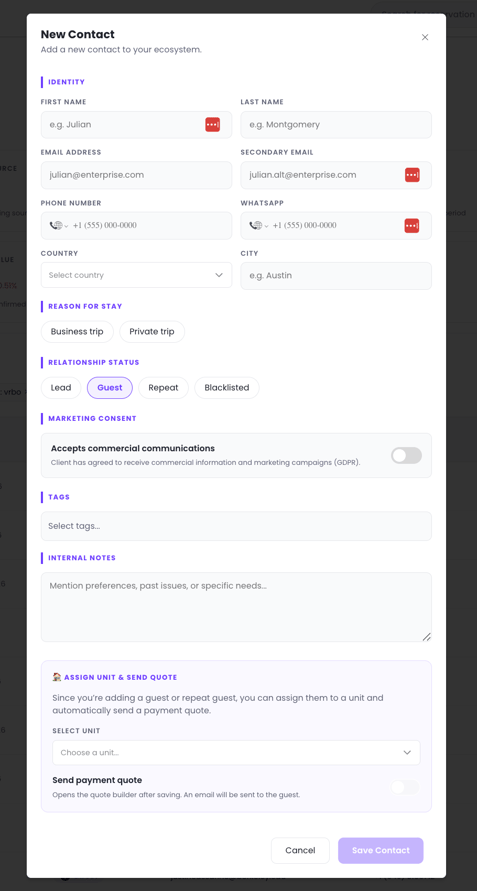
Adding contacts manually is quick and flexible. Select New Contact whenever you need to create a guest record directly in Jurny.
The form lets you capture everything from basic contact details to travel information, marketing preferences, tags, internal notes, and even unit assignments. This means your team can build a complete guest profile from the moment the contact enters your CRM.
Identity
- First Name – Enter the contact's first name.
- Last Name – Enter the contact's last name.
- Email Address – Add the primary email address.
- Secondary Email – Add an additional email address when needed.
- Phone Number – Add the contact's primary phone number.
- WhatsApp – Add the contact's WhatsApp number.
- Country – Select the contact's country.
- City – Enter the contact's city.
Reason for Stay
- Business Trip – Identifies a business-related stay.
- Private Trip – Identifies a personal or leisure stay.
Relationship Status
- Lead – Identifies a potential customer who does not yet have an active booking.
- Guest – Identifies a guest in your CRM.
- Repeat – Identifies a returning guest.
- Blacklisted – Identifies a contact flagged by your team.
Marketing Consent
- Accepts Commercial Communications – Indicates whether the contact has agreed to receive commercial information and marketing campaigns.
Additional Information
- Tags – Add tags to organize and segment your contacts.
- Internal Notes – Store useful information such as preferences, past issues, or special needs.
- Select Unit – Assign the contact to a specific unit.
- Send Payment Quote – Opens the quote builder after saving and sends an email to the guest.
- Save Contact – Saves the new contact to your CRM.
Warning: Only enable marketing consent when the guest has provided the appropriate permission to receive commercial communications.
Importing Contacts
Already have years of guest information stored elsewhere? No problem. Jurny's Import Contacts feature makes it easy to bring your existing guest database into your CRM without having to manually create every record.
Simply upload your file, match your columns to Jurny's fields, review the information, and import your contacts. This makes moving historical guest data into Jurny quick and straightforward.
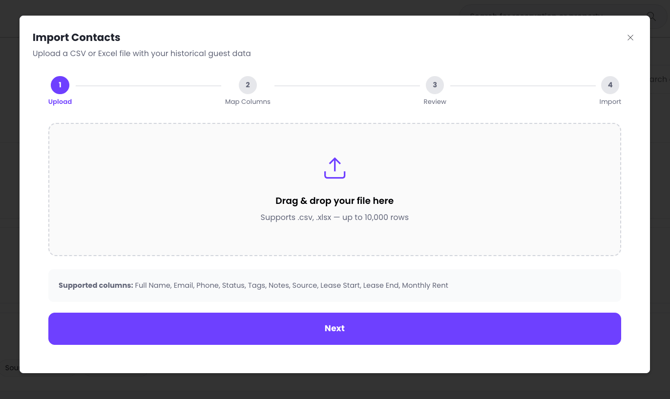
The import process is divided into four simple steps:
- Upload – Upload or drag and drop your CSV or Excel file.
- Map Columns – Match your file's columns to the appropriate Jurny fields.
- Review – Check your data and column mapping before importing.
- Import – Complete the process and add your contacts to Jurny.
Supported File Information
- File Types – CSV and Excel (.xlsx).
- File Size – Up to 10,000 rows.
- Supported Columns – Full Name, Email, Phone, Status, Tags, Notes, Source, Lease Start, Lease End, and Monthly Rent.
Caution: Review your column mapping carefully before completing the import to make sure guest information is placed in the correct fields.
Filters & Exports
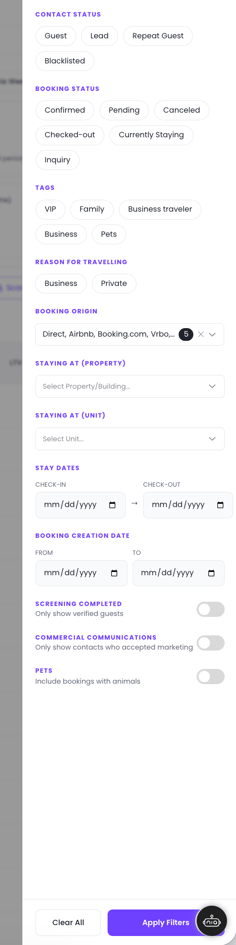
The CRM makes it easy to turn a large database into exactly the information you're looking for. Filters let you quickly narrow your results, while Export gives you the flexibility to take that information with you.
Whether you're looking for guests at a specific property, upcoming stays, business travelers, or guests who have accepted marketing communications, filters help you find the right records in just a few clicks.
Guest Directory
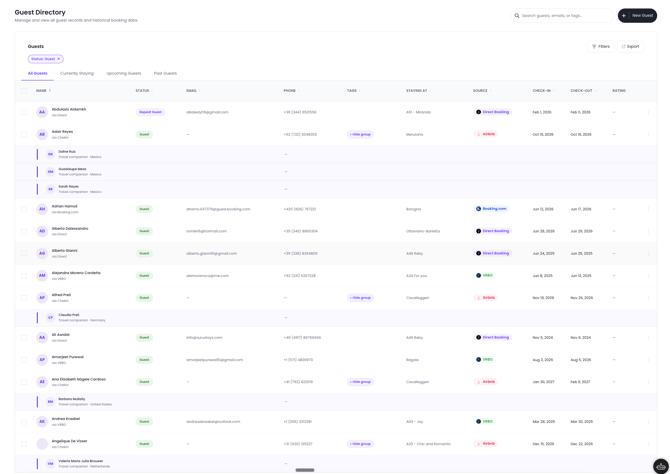
The Guest Directory is your dedicated home for everything related to your guests. While the Overview Dashboard gives you the big picture, the Guest Directory lets you dive deeper into your actual guest population and their stay history.
With dedicated views for current, upcoming, past, and all guests, you can instantly focus on the group that matters most at that moment. It's a simple way to stay organized, keep your team informed, and make guest information easy to find.
Guest Tabs
- All Guests – Displays your complete guest database.
- Currently Staying – Shows guests who are currently staying at your properties.
- Upcoming Guests – Shows guests with upcoming stays.
- Past Guests – Shows guests whose stays have already ended.
Guest Directory Columns
- Name – Displays the guest's name and booking source.
- Status – Shows the guest's current CRM status. At a glance, you'll be able to see if your guest is a repeat guest or not.
- Email – Displays the guest's email address.
- Phone – Displays the guest's phone number.
- Tags – Shows tags assigned to the guest.
- Staying At – Displays the property or unit associated with the guest's stay.
- Source – Shows where the booking originated from.
- Check-In – Displays the guest's arrival date.
- Check-Out – Displays the guest's departure date.
- Rating – Displays the guest's rating when available.
Guest Directory Actions
- Search – Quickly find a specific guest, email, or tag.
- Filters – Narrow the guest list based on specific criteria.
- Export – Export guest information.
- Guest Tabs – Switch between All Guests, Currently Staying, Upcoming Guests, and Past Guests.
Leads Dashboard
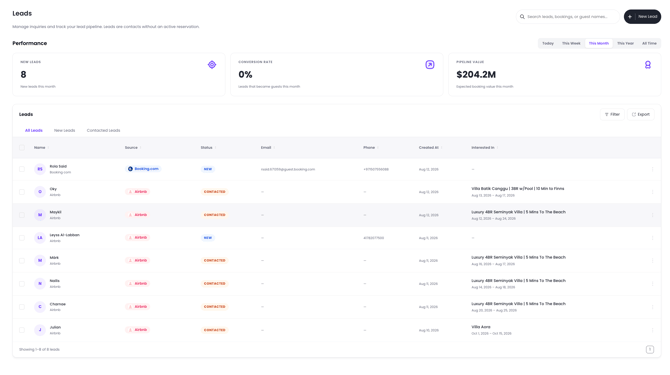
The Leads Dashboard is where your opportunities live. It gives your team a clear view of potential customers and helps you understand what's happening across your sales pipeline.
Instead of letting inquiries get lost between emails, booking platforms, and spreadsheets, the Leads Dashboard brings them together in one organized place. You can see how many new leads are coming in, how well those leads are converting, who have been contacted already, and the potential booking value currently sitting in your pipeline.
This gives your team the visibility they need to prioritize follow-ups and turn more inquiries into bookings.
Performance Metrics
- New Leads – Shows the number of new leads created during the selected period.
- Conversion Rate – Shows the percentage of leads that became guests.
- Pipeline Value – Shows the expected booking value represented by your lead pipeline.
- Date Range – Switch between Today, This Week, This Month, This Year, or All Time to adjust the reporting period.

Lead Tabs
- All Leads – Displays every lead in your CRM.
- New Leads – Displays recently created leads that may require follow-up.
- Contacted Leads – Displays leads that have already been contacted.
Lead Columns
- Name – Displays the lead's name and booking source.
- Source – Shows where the lead originated.
- Status – Shows the lead's current status, such as New or Contacted.
- Email – Displays the lead's email address.
- Phone – Displays the lead's phone number.
- Created At – Shows when the lead was created.
- Interested In – Displays the property, unit, and dates the lead is interested in.
Make the Most of Your New CRM
Your Jurny CRM brings guest management, contact organization, and lead tracking together in one place. By keeping your guest information organized and regularly reviewing your metrics, filters, and lead pipeline, your team can spend less time searching for information and more time creating great guest experiences.
If you need help or have any questions, don’t hesitate to reach out. Contact your Customer Success Manager or our support team at support.jurny.com – we’re happy to assist.