
Why Connect WhatsApp to Jurny?
WhatsApp is one of the most widely used messaging platforms in the world, making it an excellent channel for guest communication.
By connecting your WhatsApp Business Account to Jurny, you can:
- Reach guests on a platform they already use and trust.
- Automate important reservation communications.
- Manage WhatsApp conversations directly from Jurny's Unified Inbox.
- Keep guest messaging organized alongside your other communication channels.
- Create a more seamless guest experience from booking to checkout.
Before You Begin
Before connecting WhatsApp to Jurny, you'll need a WhatsApp Business Account that is already linked to a Meta Business Account (Business Portfolio).
Note: If your WhatsApp Business number is not connected to a Meta Business Account, you'll need to complete that setup first before connecting to Jurny.
Connect Your WhatsApp Business Account
Getting connected only takes a few minutes.
Step 1: Open WhatsApp Settings
- Log in to Jurny.
- Navigate to Setup.
- Click WhatsApp.
- Select Connect via Facebook.
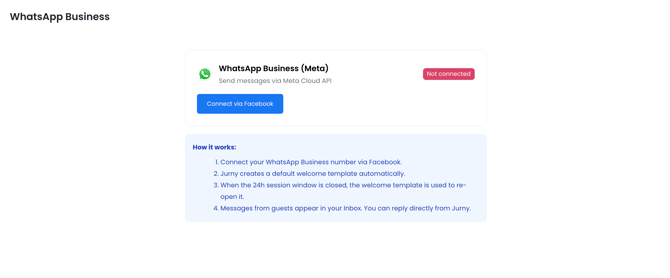
Step 2: Connect Your Meta Account
A Meta authorization window will appear.
- Click Continue. Follow the prompts to authorize the connection between Meta and Jurny.
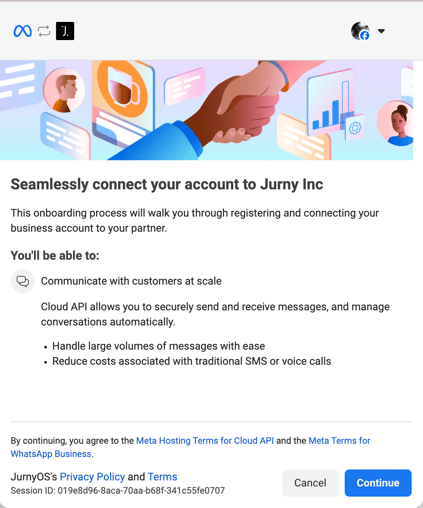
Step 3: Select Your Business Portfolio
- Choose the Business Portfolio that contains your WhatsApp Business Account.
Tip: Your Business Portfolio is simply the Meta Business Account where your WhatsApp Business number is managed.
Step 4: Choose Your WhatsApp Business Account
- Select the WhatsApp Business Account you'd like to connect. From the available options, choose the phone number associated with that account.
You should see the phone number currently connected through Meta.
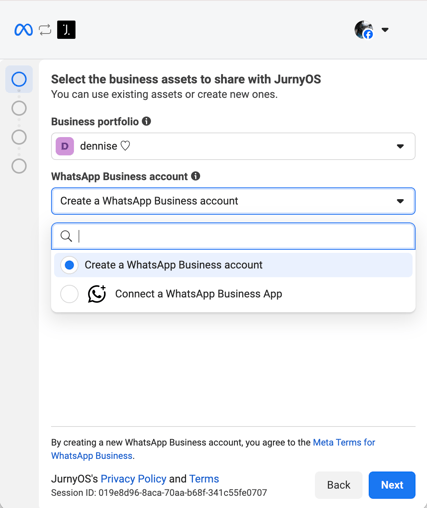
Step 5: Confirm and Connect
- Review the information displayed.
- Confirm the connection details.
- Complete the setup.
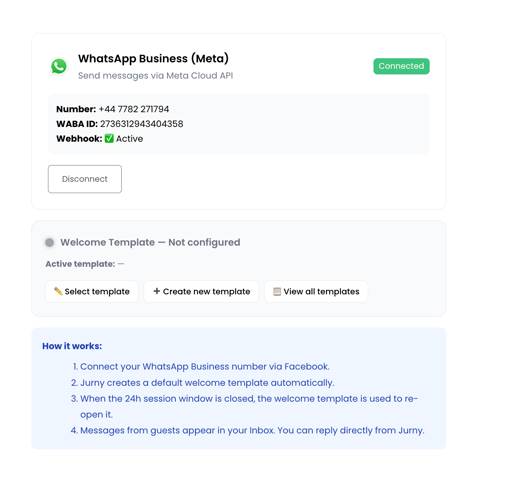
🎉 That's it! Your WhatsApp Business Account is now connected to Jurny.
Connect Through the WhatsApp Business App
Already using the WhatsApp Business App? You can connect that too.
- Select the option to connect your WhatsApp Business App. Follow the on-screen instructions.
- Once prompted, scan the QR code provided.
- Complete the verification process.
Once complete, your WhatsApp Business App will be linked to Jurny and ready to use.
Manage WhatsApp Templates
WhatsApp requires message templates to be approved before they can be used for outbound communication.
Check Template Status
To view your existing templates:
- Navigate to the WhatsApp page in Jurny and click View All Templates.
Here, you can review the approval status of every template submitted to WhatsApp.
Note: Only approved templates can be used for outbound messaging.
Create a New Template
Need a new guest communication template?
- Click Create New Template.
- Build your message.
- Submit it for WhatsApp approval.
Select a Different Template
Want to switch which template Jurny uses?
- Click Select Template.
- Choose an approved template.
- Save your changes.
Understanding WhatsApp Template Variables
When creating custom WhatsApp templates in Meta for use with Jurny, it's important to use the required variables correctly. If your template isn't built properly, WhatsApp will reject the message and it won't be delivered.
Note: Jurny requires two variables in every WhatsApp template.
Required Variables
1 – Guest First Name
This variable is reserved for the guest's first name.
- It is automatically populated by Jurny.
- It cannot be edited or repurposed.
- When creating your template in Meta, the example value should always be a guest name, such as "John."
Example:
- Variable:
1 - Example Value:
John
2 – Custom Message Content
This is the only variable hosts should customize.
Use this variable for the dynamic portion of your message, such as reservation details, check-in instructions, reminders, or any other guest-specific information.
Example:
-
Variable:
2 -
Example Value:
Your reservation is confirmed for tomorrow.
Warning: Every custom WhatsApp template must include both 1 and 2. If either variable is missing, WhatsApp will reject the message, and it will not be sent. One of the most common mistakes is creating a template with only a single variable.
Variable Placement Rules
WhatsApp also requires that a message cannot begin or end with a variable.
Each variable must be surrounded by static text.
✅ Correct Examples
Hello 1, we are writing to you from Jurny Stays. 2. We look forward to welcoming you.
or
Hello 1, we are writing to you from Jurny Stays. 2 - The Medina Living Team
❌ Incorrect Example
2
or
Hello 1, we are writing to you from Jurny Stays. 2
Because the message ends with a variable, WhatsApp may reject the template.
Example Template
A correctly formatted template might look like this:
Hello 1, we are writing to you from Jurny Stays. 2. We look forward to welcoming you.
How the Variables Are Replaced
| Variable | Purpose | Example Value |
|---|---|---|
1 |
Guest first name | John |
2 |
Custom message content | Your reservation is confirmed for tomorrow. |
Final Message Example
If the variables above are populated, your guest would receive:
Hello John, we are writing to you from Jurny Stays. Your reservation is confirmed for tomorrow. We look forward to welcoming you.
Tip: Before submitting a template to Meta for approval, verify that:
- Both
1and2are included.1is used only for the guest's first name.- The message does not begin or end with a variable.
- Each variable has an appropriate example value when creating the template in Meta.
This addition matches the style of the rest of your knowledge base while giving clients a clear reference for building WhatsApp templates correctly.
Start Guest Conversations Automatically
To sync WhatsApp conversations into Jurny, two conditions must be met:
- A guest reservation must exist.
- The first WhatsApp message must be initiated from Jurny.
One of the easiest ways to accomplish this is through automated messaging. You can create a brand new template just to trigger the message thread on WhatsApp or use your Booking Confirmation Template as an option.
- Open your template settings in Jurny.
- Create your template.
- Select the Main Recipient as WhatsApp
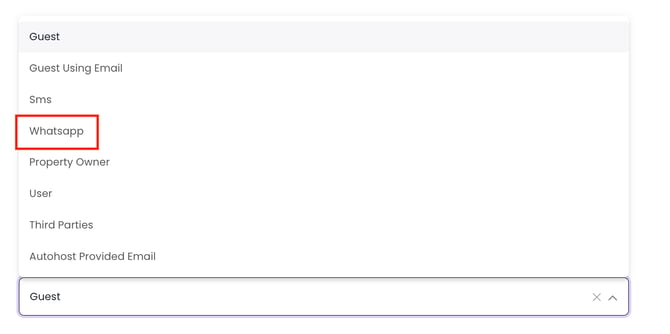
When the template is sent, the WhatsApp conversation thread begins automatically.
Once the guest replies, future messages can continue syncing through Jurny.
Important: WhatsApp has a max character limit of 1024 characters for all templates and messages. Any message that will go beyond the character limit will fail to send in the Jurny inbox.
Send WhatsApp Messages from the Unified Inbox
Prefer to start the conversation manually? You can do that directly from Jurny's Unified Inbox.
Step 1: Open the Guest Conversation
- Navigate to the reservation and open the conversation thread.
Step 2: Choose WhatsApp
- Select the WhatsApp messaging option and verify that the send arrow turns green.
.png?width=620&height=450&name=unnamed%20(1).png)
Note: A green send arrow confirms the message will be delivered through WhatsApp.
Once the guest responds, the WhatsApp conversation will begin syncing into Jurny.
Troubleshooting
My WhatsApp Account Doesn't Appear
- Verify the phone number is connected to a Meta Business Account.
- Confirm you're signed into the correct Facebook account.
- Ensure you've selected the correct Business Portfolio.
My Template Isn't Available
- Check whether the template has been approved by WhatsApp.
- Review its status under View All Templates.
Messages Aren't Syncing
- Confirm there is an active reservation for the guest.
- Ensure the first WhatsApp message was sent from Jurny.
- Verify the conversation was initiated through WhatsApp.
Caution: Conversations started outside of Jurny may not automatically sync until a WhatsApp interaction is initiated from within the platform.
With WhatsApp connected to Jurny, you can create faster, more convenient guest communication experiences while keeping every conversation organized in one place.
If you need help or have any questions, don’t hesitate to reach out. Contact your Customer Success Manager or our support team at support.jurny.com – we’re happy to assist.