
Why is it important?
How to Give an Owner Dashboard Access (Admin / Ops)
Step 1: Open the Owners List
-
Log in to your Jurny account
-
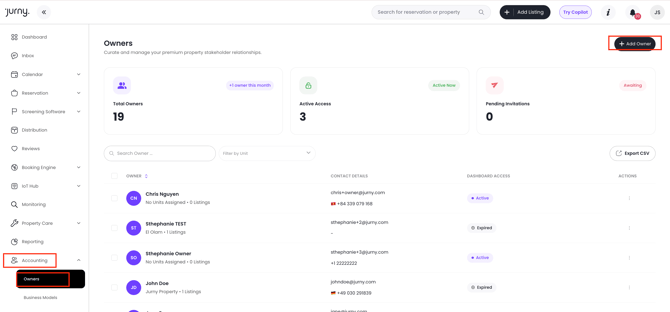
From the left menu panel, click Accounting
-
Select the Owners tab, then click Add Owner
Step 2: Add a New Owner
-
Click Add Owner
-
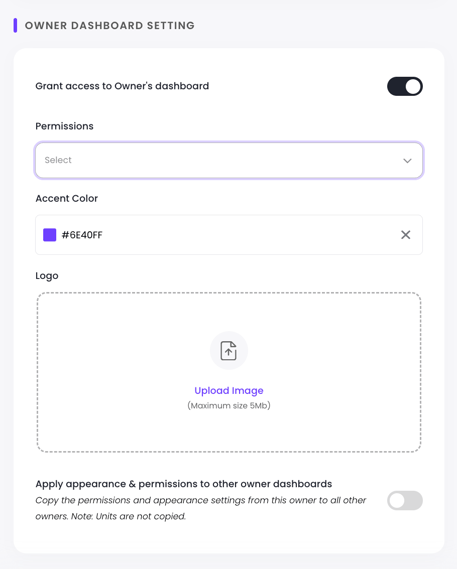
Enter the owner's details, and at the end of the page, you should see an option to grant access to the dashboard for the owner.
-
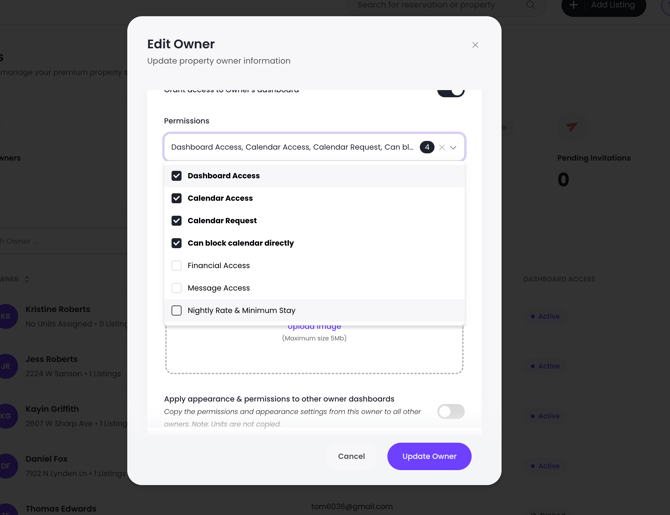
Before inviting an owner, you can choose which sections of the Owner Dashboard they can access. Available permissions include:
- Dashboard
- Messages
- Calendar
- Financials
- Nightly Rates & Minimum Stays – Allows owners to view nightly rates and minimum stay requirements in the Calendar, similar to the Single Property Calendar.
-
Click Add Owner.
Once added, the owner automatically receives an email for an invite with their access link and you will see that they have been invited.

Once they click on the link, they will be initially prompted to create their logins.
Owners would need to go to https://owners.jurny.com to access the owners' dashboard.
Note: Access links will expire within 24 hours if not used.
Customize the Owner Dashboard to Match Your Brand
Under Dashboard Settings, you can personalize the Owner Dashboard to reflect your company’s unique brand identity. This helps create a more professional, cohesive experience for your owners every time they log in.
With just a few clicks, you can:
-
Choose an accent color that matches your brand
-
Upload your company logo, which will be displayed throughout the Owner Dashboard
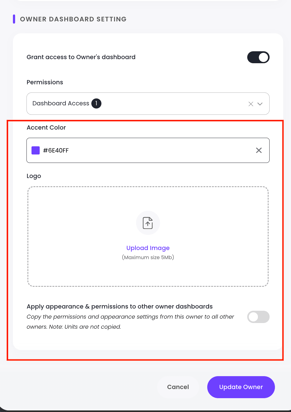
These customizations ensure your owners see a dashboard that feels familiar, branded, and tailored specifically to your business—building trust and reinforcing your brand at every touchpoint. You also have the option to apply the customization you added for one owner to all owners in your account with one click!
FAQ: Can I host my owners dashboard on a custom domain instead of Jurny? The answer is yes! Please reach out to your Customer Success Manager for more information.
Preview the Owner Dashboard Experience
You also have the option to view exactly what your owners see on their dashboard.
To do this:
-
Click the icon with the three dots in the right side of the owner
-
Select View Dashboard
This remote access allows you to see the Owner Dashboard from the owner’s perspective, making it much easier to troubleshoot questions, guide owners, and provide faster support.
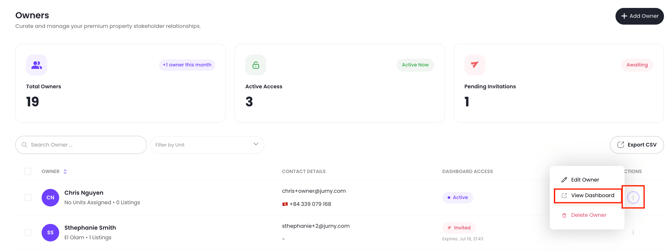
Tip: Viewing the dashboard as an owner helps you resolve issues quickly since you can see the same screens and data they’re seeing.
Owner Portal Navigation (What Owners See)
After logging in, owners see a top navigation bar with the permissions you've given them. They can either be the 4 items below or all of them, depending on what access you provide.
-
Dashboard
-
Messages
-
Calendar
-
Financials
Owners can also filter views by property or unit using dropdowns (especially within Financials).
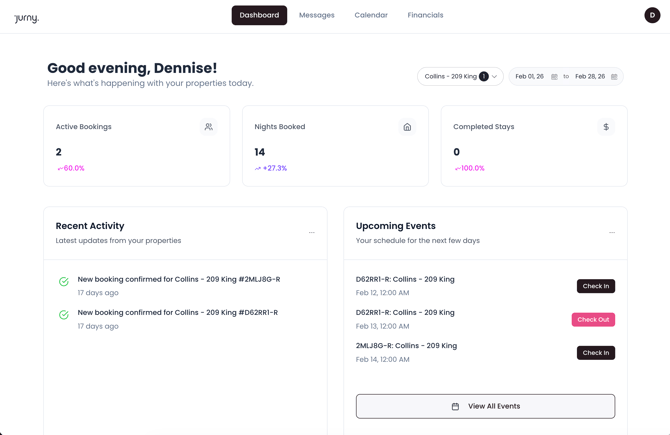
Dashboard Importance
-
Quick overview of bookings
-
Performance visibility without operational details
Messages
The Messages tab allows owners to view communications related to their property.
Note: In most setups, owners have view-only access and do not manage guest messaging.
Calendar
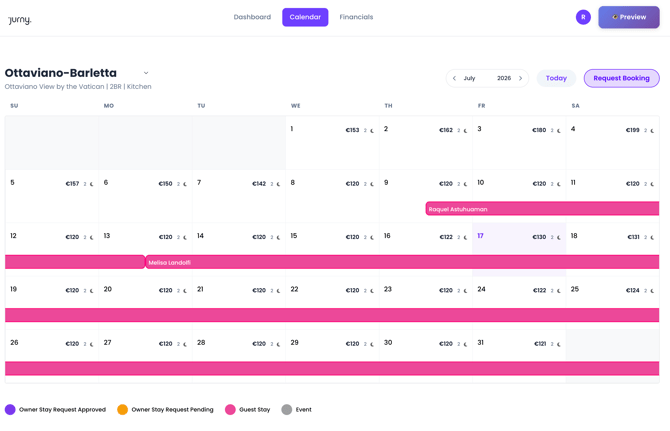
Owners Can Use It To
-
View upcoming stays
-
Visually understand occupancy
-
Check availability by date
Financials
The Financials tab allows owners to review booking totals and statement-level performance.
1. Summary Cards (Top Section)
-
Active Bookings
-
Nights Booked
-
Completed Stays
These update based on:
-
Selected property or unit
-
Date range filter
2. Filters
Owners can filter Financials by:
-
Property / Unit (dropdown)
-
Date range (e.g., Jan 01 → Jan 31)
3. Statement Table
-
Statement Date
-
Property
-
Gross Revenue
-
Expenses
-
Management Fee
-
Net Owner Payment
-
Status
-
Actions
If no statements exist for the selected date range, the table displays:
“No record”
4. Nightly Rates & Minimum Stays
If this permission is enabled, owners can view nightly rates and minimum stay requirements directly from the Calendar. This provides additional visibility into property pricing and booking restrictions without granting access to edit them.
Troubleshooting
Owner Didn’t Receive the Invite Email
-
Confirm the email address under Reporting → Owners
-
Re-send the invite (status should show Invited)
-
Ask the owner to check spam or junk folders
Owner Can’t Access the Portal Link
-
The access link may have expired
-
Re-invite the owner from Reporting → Owners
Caution: Expired links cannot be reused.
If you need help or have any questions, don’t hesitate to reach out. Contact your Customer Success Manager or our support team at support.jurny.com – we’re happy to assist.