
Quick Navigation Index
- How to Access the Message Log
- Understanding the Message Log Columns
- How to Pause or Send a Message from the Log
📊 What Are Message Logs?
The Message Logs section shows you a detailed view of every message template scheduled to send, already sent, or paused for your reservations.
You can use this log to:
-
Track automation performance
-
Review message status
-
Pause or send messages manually
-
Ensure guests are receiving important communication
📍 How to Access the Message Logs
-
Navigate to the Inbox section in the left menu.
-
Click Inbox Settings, then go to Templates.
-
Open the Message Logs tab at the far right.
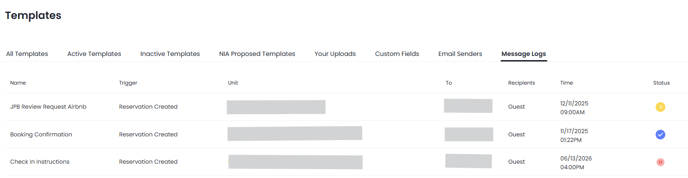
You’ll now see a table like this:
📘 Understanding the Message Log Columns
Here’s a breakdown of each column in the Message Logs table:
| Name |
The name of the template (e.g., "Booking Confirmation") |
| Trigger |
The event that causes the message to be sent (e.g., Reservation Created) |
| Unit |
The property or listing associated with the reservation |
| To |
The guest or recipient |
| Recipients |
Shows the delivery method (Guest, Email, SMS, etc.) |
| Time |
Scheduled send time |
| Status |
Message status (Active, Paused, or Sent) |
Note: If you see a red pause icon, it means the message has been disabled and won’t be sent.
How to Pause or Send a Message from the Log
To manage a message directly from the Message Logs:
-
Locate the row of the message you want to manage.
-
Click the icon of status next to the message.
-
Choose one of the following options:
-
Enable Message: Re-activates a paused message.
-
Disable Message: Pauses the message so it won't send.
-
Send Message: Sends it immediately.
-
Tip: Use this feature if you want to pause a single message without deactivating the entire template.
🧾 How to Pause a Message for a Specific Reservation Only
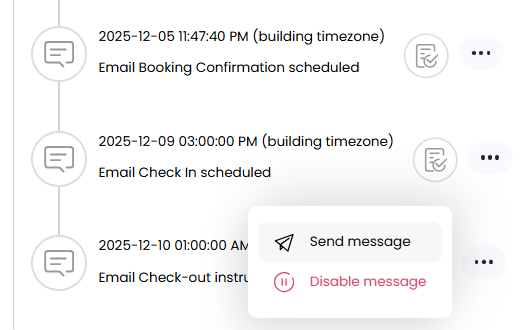
If you only want to pause or send a message for one reservation, follow these steps:
-
Go to the reservation.
-
Click into the Logbook tab inside that reservation.
-
You'll see all scheduled messages for this guest.
-
Click the three dots (︙) next to a scheduled message.
-
Select:
-
Pause to stop the message from sending.
-
Send Now to send it immediately.
-
Note: This does not affect the template or other reservations—only the selected one.
If you need help or have any questions, don’t hesitate to reach out. Contact your Customer Success Manager or our support team at support.jurny.com – we’re happy to assist.