
Quick Navigation Index
To easily navigate through this guide, click on any of the sections below to jump directly to the information you need:
Before You Get Started
Before connecting PriceLabs to Jurny, make sure that:
-
You have an active PriceLabs account
-
Your listings are already imported into Jurny
-
You are on a Pro or Custom plan (PriceLabs is not included)
Caution:
Only one smart pricing tool can be enabled per Jurny account. You cannot use Wheelhouse and PriceLabs at the same time.
⚠️ Important Before You Start
By default, Jurny includes smart pricing with Wheelhouse.
If you plan to use PriceLabs instead of Wheelhouse, you must contact your Customer Success Manager or our Support team so they can update your account settings before proceeding.
📩 Reach out to support.jurny.com if you’re unsure whether PriceLabs is enabled on your account.
Step 1: Create a PriceLabs Account & Allow Jurny Access
-
Log in to your PriceLabs account
-
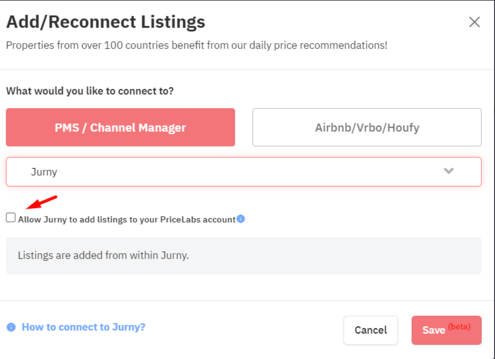
Click the “+ Add / Reconnect Listings” button (top-left corner)

-
In the PMS list, search for and select Jurny
-
Enable the option “Allow Jurny to add listings to your PriceLabs account”
-
Click Save
This allows PriceLabs to receive listings from Jurny.
Step 2: Connect PriceLabs in Jurny
-
Log in to your Jurny account
-
Go to Smart Pricing → PriceLabs
-
Click Add PriceLabs Account
You’ll be asked to provide:
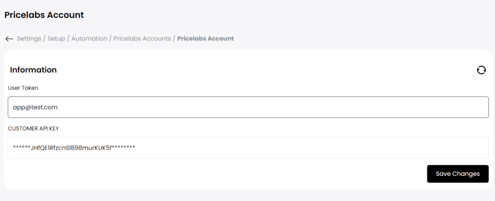
User Token
-
Enter the email address associated with your PriceLabs account
Customer API Key (Optional)
-
Enter your PriceLabs Customer API Key only if you want to:
-
Manage Base Price
-
Set Minimum Price
-
Set Maximum Price
directly from Jurny
-
Important:
Enabling the Customer API Key may result in additional API charges from PriceLabs.
If you prefer to manage pricing entirely within PriceLabs, leave this field blank.
Click Save Changes
Step 3: Enable Smart Pricing in Jurny
PriceLabs will only sync prices for listings where Smart Pricing is enabled.
To enable it:
-
Go to Settings → Listings
-
Select a listing
-
Click Rental Rates
-
Enable Smart Pricing
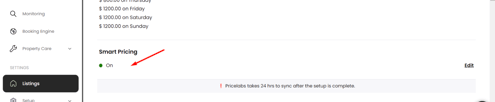
Repeat this step for each listing you want managed by PriceLabs.
Note:
If Smart Pricing is not enabled, pricing will not sync—even if the integration is connected.
Step 4: Finalize Pricing in PriceLabs
Once listings appear in PriceLabs:
-
Open your PriceLabs dashboard
-
Click Review Prices for a listing
-
Set:
-
Base Price
-
Minimum Price
-
Any custom rules or adjustments
-
-
Click Save & Refresh
When you’re satisfied with the pricing:
-
Turn Sync ON for the listing
-
Use:
-
Sync Now to push prices immediately for a single listing, or
-
Customizations → Sync All to update all listings at once
-
Important Notes & Sync Behavior
-
Initial sync may take up to 2 hours for first-time connections
-
Prices sync automatically on a nightly basis
-
Manual sync is available at any time
-
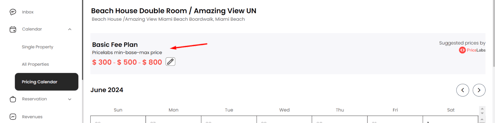
Minimum, base, and maximum pricing controls in Jurny are visible only if the API key is provided
You’re All Set 🚀
Once connected, PriceLabs will automatically update your pricing based on market demand, helping you stay competitive and maximize revenue.
If you need help or have any questions, don’t hesitate to reach out.
Contact your Customer Success Manager or our support team at support.jurny.com – we’re happy to assist.