
Quick Navigation Index
What Are Guidebooks?
Guidebooks in Jurny provide your guests with digital, property-specific information—like check-in instructions, Wi-Fi details, local recommendations, and house rules—all in one easy-to-access place via the Guest App.
They help reduce guest questions, improve the guest experience, and save you time.
Before You Start: Guest App Feature Required
⚠️ Important: Guidebooks are only available if the Guest App feature is active on your account.
If you’re unsure whether this feature is enabled, please reach out to your Customer Success Manager.
How to Set Up a Guidebook (Step-by-Step)
Navigate to the Guidebooks section
Login to your Jurny account in mos.jurny.com and go to the Booking engine tab on the left side menu. You will see a new drop-down menu called Guidebooks. Click on it.
Step-by-Step: Build Your Guidebook
1. Name Your Guidebook
At the top of the builder, enter your Guidebook Title (e.g., “Downtown Loft Guest Guide”).
2. Set your Guide Style
On the upper right side, you will see the "Guide Style" button. Click on it and start selecting the corporate colors of your brand, font colors, font family and size. Once you create this style guide it will be automatically applied to all the guidebook, but if you want to make any customizations, each added section can be customized by clicking the paint brush button on the upper right side of the section.
3. Drag and Drop Sections
-
On the left, you’ll see the Content Library.
-
Click and drag the sections you want into the main Guidebook Builder area.
Available sections include:
-
Welcome – Add a friendly intro.
-
Wi-Fi Info – Include network name and password.
-
Check-in – Provide step-by-step access instructions.
-
House Rules – Share important guidelines for the stay.
-
Appliances – Explain how to use key items (like A/C or washer).
-
Emergencies – Add contacts and procedures in case of issues.
-
Local Spots – Recommend nearby restaurants, shops, or attractions.
-
💡 Tip: You can rearrange sections by dragging them into a new order anytime.
3. Customize Each Section
-
Click on each section you’ve added to edit the content.
-
Use clear, friendly language and bullet points where possible.
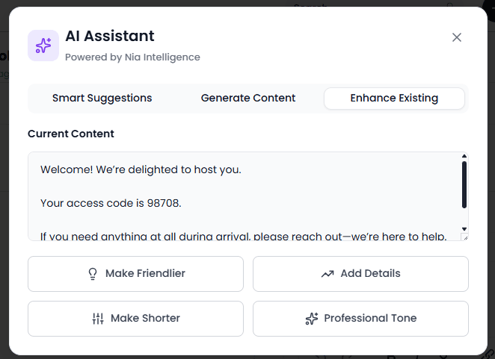
You can upload photos or add helpful links to make things more visual or choose to enhance your content using AI by clicking the AI Enhance button on the lower right side of each section.
AI-enhanced content 🌟
Click the AI Assistant button at the top right corner and use NIA intelligence to help you create or enhance your content and make your guidebooks really stand out. Choose between a friendlier approach or a more professional one, fine tune your texts as you wish.
Add Images or Media (Optional but Recommended)
-
-
Upload photos to illustrate instructions (e.g., how to find the entrance or use appliances).
- You can also embed short videos or add links to external resources.
-
We’ve rolled out some powerful new enhancements to the Guidebooks Knowledge Base to make creating, customizing, and sharing your guidebooks easier than ever. These updates are designed to save you time, improve accuracy, and give you more flexibility.
✨ What’s New?
-
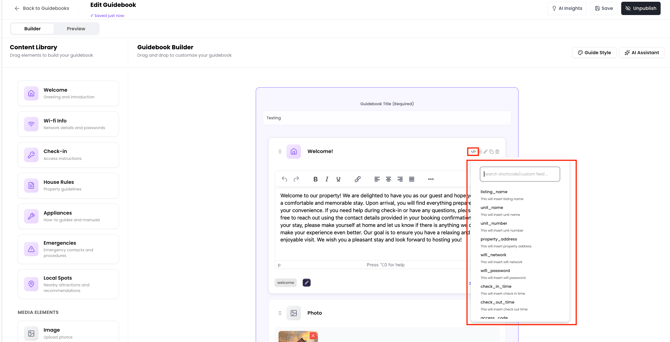
More Custom Fields for Property Information
We’ve expanded the available custom fields in the Guidebooks and they’ll feel instantly familiar because they’re the same fields you already use when creating templates.
You can now automatically pull in even more property details directly into your guidebooks, making content creation faster and more seamless.
-
A Better, Smarter Live Preview
The live preview was already a helpful way to review your guidebooks and now it’s even better!
We’ve upgraded the navigation so it’s now fully dynamic. Instead of scrolling through a long PDF-style preview, you can simply click the tabs and instantly navigate to different sections of your guidebook.
Why you’ll love it:
- Jump to sections instantly
- Easier navigation while editing
- Faster content review
- More interactive preview experience
- Less scrolling, more efficiency
-
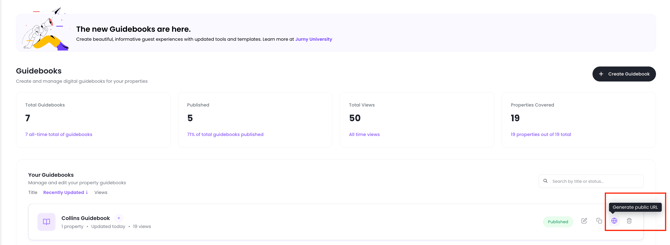
Generate a Public URL to Share Anywhere
Sharing your guidebooks is now even easier.
You now have the option to generate a public URL for your guidebook, making it simple to share with guests, team members, or anyone who needs access.
Perfect for:
- Sending directly to guests
- Sharing with staff or cleaners
- Quick access from any device
- Easy distribution without extra steps
These new updates are built to help you create smarter guidebooks, preview faster, and share effortlessly.
Save as draft to continue editing later or click Publish to make it available for your guests. Next, select the property or properties you wish to assign the guidebook to and you are ready to publish.
Customization Tips
-
Use your brand tone or voice to personalize the experience.
-
Update the Guidebook anytime—changes are reflected in real time.
-
For multi-unit properties, create one base template and duplicate it for similar units to save time. You can also add multiple units to the same guide if your properties use the same one.
📝 Note: If you have seasonal updates (like pool hours or local events), set a reminder to update the content accordingly.
How Guests Access the Guidebook
Guests receive a link to their personalized Guidebook automatically through:
-
The Guest App
-
Pre-arrival emails or messages
-
Optional: You can also share the link manually via your preferred channel
📲 Tip: Encourage guests to download the Guest App during the booking confirmation process so they have everything in one place.
You can also see the total number of views of all & each of your guidebook in your dashboard.
Don’t Have the Guest App Feature Yet?
You’re missing out on one of the most powerful tools to automate guest communication and improve satisfaction.
✅ With the Guest App, you unlock:
-
Instant access to digital Guidebooks
-
Streamlined guest messaging
-
Automated check-in/out instructions
-
Real-time local recommendations
🎯 Get Started Today!
Contact your Customer Success Manager or click here to request activation of the Guest App feature.