
Quick Navigation Index
To easily navigate through this guide, click on any of the sections below to jump directly to the information you need:
📥 Accessing the Templates Section
-
Go to the Inbox section in your Jurny dashboard.
-
On the left-hand menu, scroll down and click Inbox Settings.
-
Select Templates to open the template management area.
📂 Template Categories Explained
Inside the Templates section, you'll find several tabs to organize your messages:
1. All Templates
-
Includes active, inactive, and draft templates.
-
Best for seeing the full picture of all your content.
2. Active Templates
-
Templates with a scheduled trigger.
-
These will be automatically sent based on the conditions you set.
3. Inactive Templates
-
Drafts or templates you've paused or deactivated.
-
Useful for storing messages you’re still working on.
4. Nia Proposed Templates
These are AI-powered suggestions based on your existing conversations, property type, and portfolio size.
“Nia analyzes your inbox conversations, property type, and portfolio size to generate ready-to-use message templates tailored to your operations.”
✅ They’re customizable and can save time by giving you a strong starting point.
📘 Learn more: Understanding and Using Nia Proposed Templates (Insert link to sub-guide)
5. Your Uploads
Upload a document (like a house manual), and Jurny’s AI will turn it into a usable template—no copy-pasting required.
📘 Learn more: Uploading Documents to Create Templates Automatically
6. Custom Fields
Use this section to create dynamic placeholders for property-specific details like:
-
Lock codes
-
Parking instructions
-
Wi-Fi info
These fields allow one template to be reused across multiple listings with tailored content for each guest.
📘 Learn more: How to Use Custom Fields in Templates
7. Email Sender
Want messages to come from your own domain instead of a generic Jurny email?
Set it up in this section for consistent branding.
📘 Learn more: How to Connect Your Email Domain for Template Sending
8. Message Logs
Track which templates were sent, when, and to whom. See:
-
Template name
-
Trigger event
-
Assigned listing
-
Guest info
-
Time sent
-
Message status
📘 Learn more: How to Use the Message Logs to Track Communication
✍️ Creating a New Template
-
In the Templates section, click Add New in the top-right corner.
-
Select Add New Template.
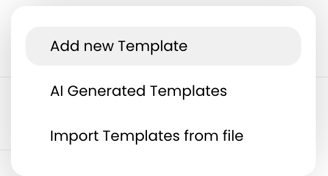
You’ll now configure your new template across several sections:
Template Setup Fields
Template Name
-
Internal use only — name it something easy to recognize.
Message Content
-
Compose your message and apply formatting (bold, italic, centered text, etc).
-
Add images (max 5–10 MB, depending on platform limitations).
-
Use the Insert Shortcode option to personalize messages with guest or property data
- Click Message Preview to check how your content will look.
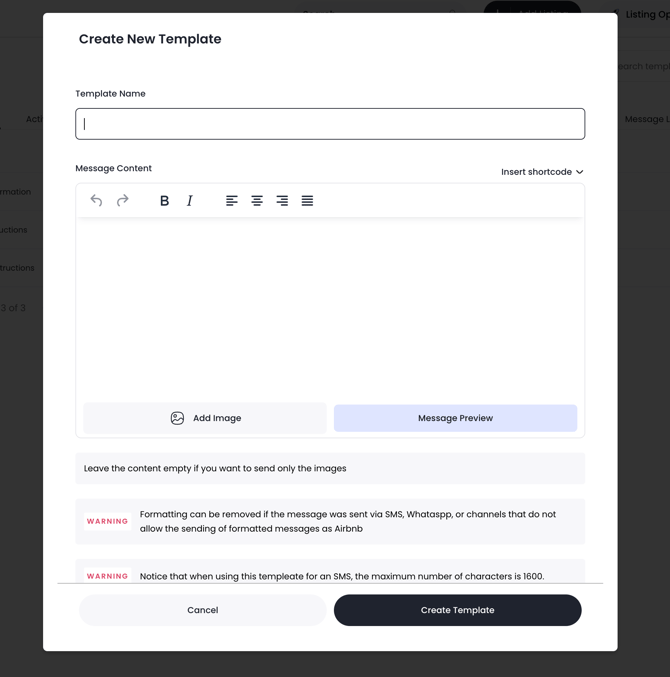
💡 Tip: You’ll also see your Custom Fields in Insert Shortcode — use the search bar to find and insert them.
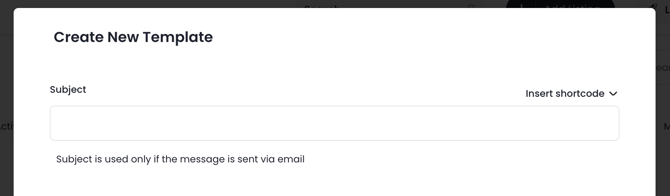
Subject
-
Required only for direct reservations where emails are used.
⏰ Scheduling and Automation Rules
🚀 Ready to put your templates to work? Head over to our Template Automation Builder Guide to learn how to schedule messages, create automation rules with triggers and conditions, and build seamless guest communication workflows: How to Use the Template Automation Builder (Triggers & Conditions)
Customizing the Email Sender
In the Mailer Configuration section:
-
Use Jurny’s default system email
-
Or connect your branded email for a personalized experience
📘 Learn more: How to Connect Your Email Domain for Template Sending
✅ Managing Template Status
Once your template is set up:
-
Click Save Changes
-
Go to the All Templates tab
-
Use the toggle to activate or deactivate
-
Use the gear icon to:
-
Edit
-
Clone
-
Delete
-
Tip: Leave templates inactive until you’re ready to go live.
If you need help or have any questions, don’t hesitate to reach out. Contact your Customer Success Manager or our support team at support@jurny.com. We’re happy to assist.