
Quick Navigation Index
To easily navigate through this guide, click on any of the sections below to jump directly to the information you need:
Where to Manage Your Airbnb Connection
-
In your Jurny dashboard, go to the left-hand menu.
-
Click on Distribution.
-
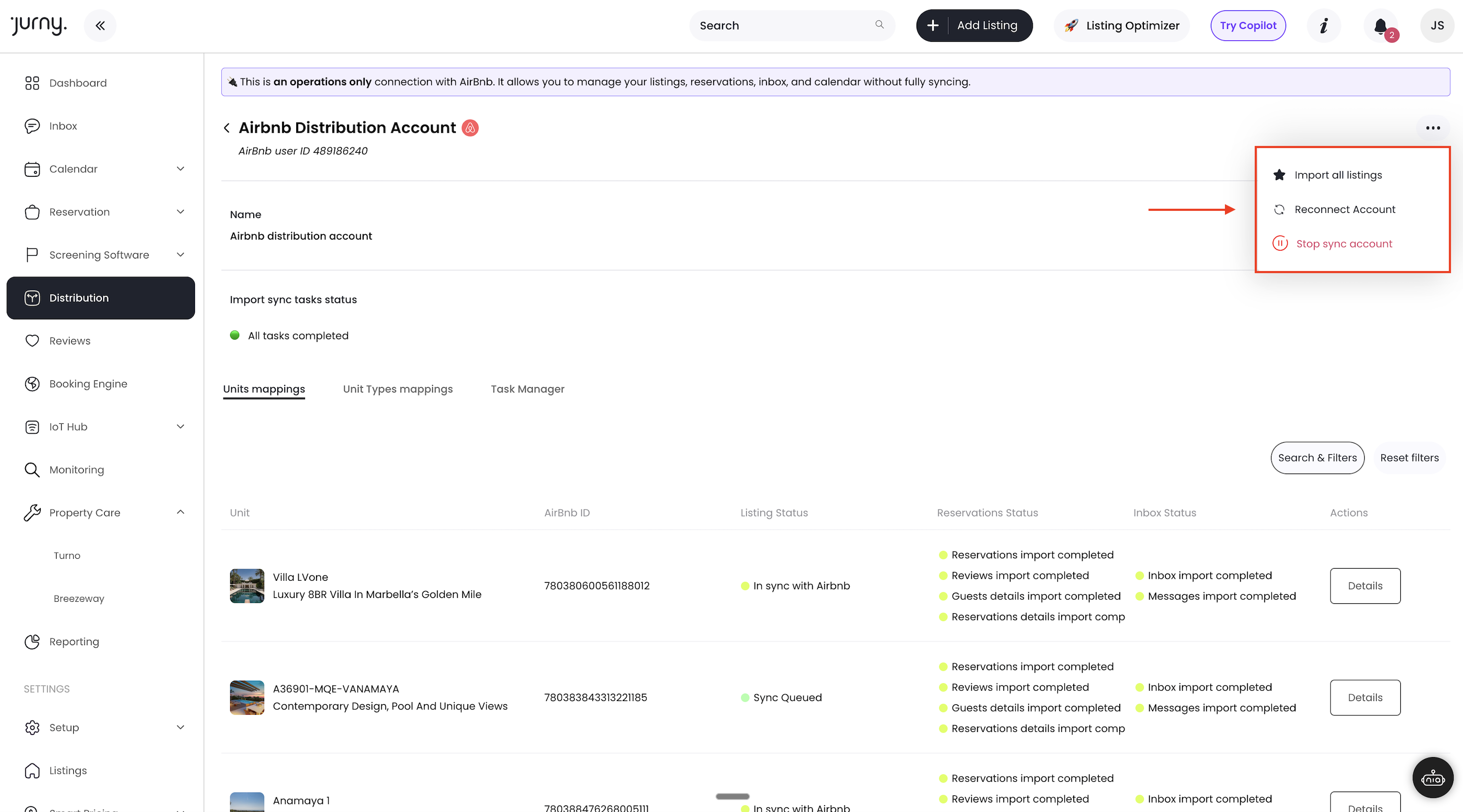
Locate the Airbnb account currently connected to Jurny and click on it.
On the right-hand side, you’ll see a menu with three dots (⋯) — this is where you’ll manage your connection.
How to Pause Your Airbnb Connection
If you want to temporarily stop syncing without disconnecting:
-
Click the three dots (⋯) on the right-hand side of the Airbnb account box.
-
Select Pause Connection.
Your account will remain connected, but syncing of reservations, availability, or messages will pause until you resume it.
Tip: Pausing is ideal during onboarding or when updating your listings to prevent unwanted changes being sent to Airbnb.
How to Fully Disconnect Your Airbnb Account
You can also remove the connection entirely:
-
Click the three dots (⋯).
-
Select Disconnect Account.
⚠️ Warning: Before disconnecting the Airbnb account, you MUST disconnect each listing’s mapping individually. Keep reading to learn how.
Important: Disconnect Listing Mapping First
To avoid syncing issues or errors, disconnect each listing from Airbnb before removing the main account connection.
Here’s how:
-
Scroll down to see the list of all listings currently connected to Airbnb.
-
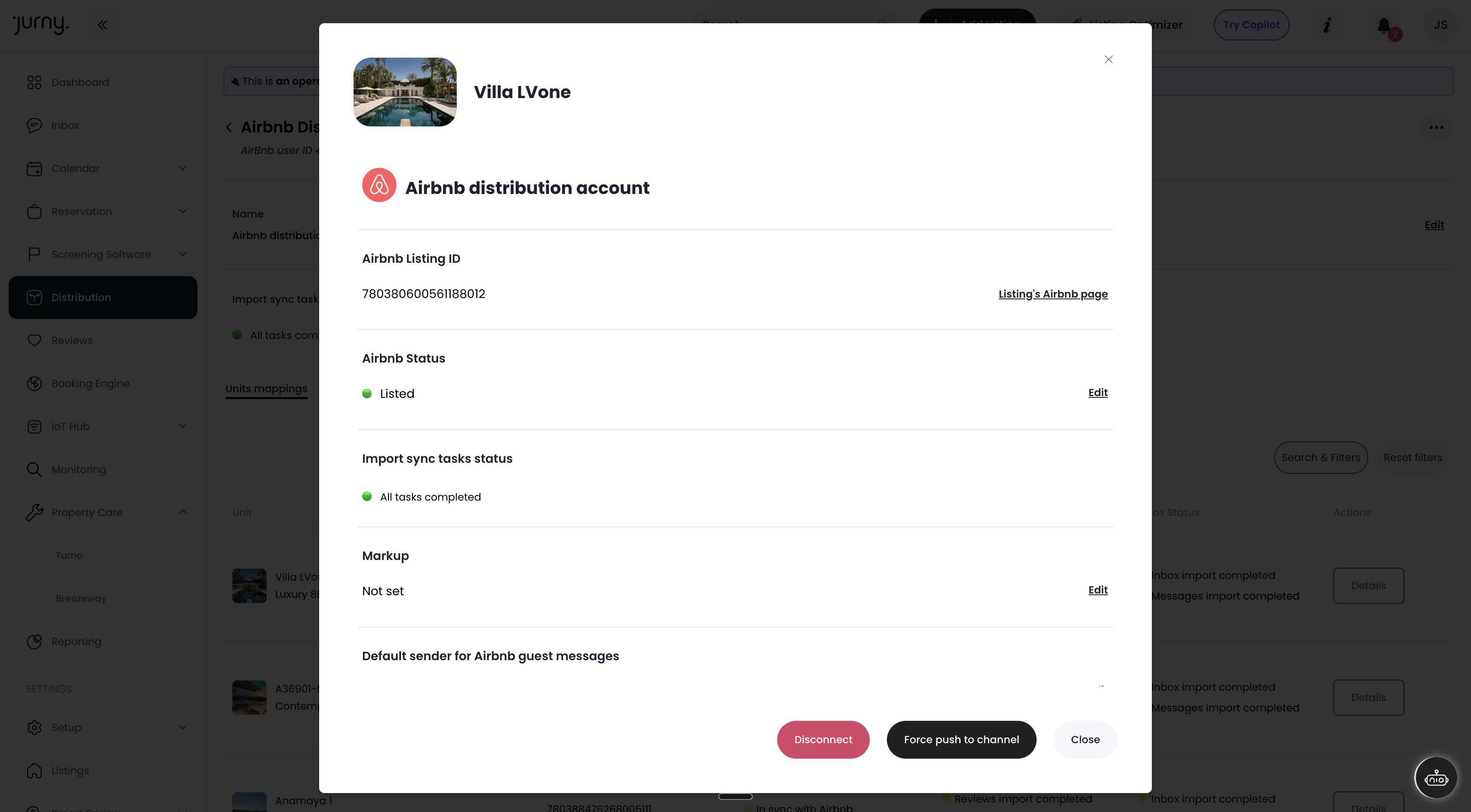
For each listing, click Details.
-
A pop-up window will appear. Scroll to the bottom.
-
You’ll see two options:
-
Disconnect
-
Force Push Changes to Channel
-
-
Click Disconnect to remove the mapping for that listing.
Repeat this for each property connected to Airbnb.
Caution: Do not disconnect the Airbnb account at the top level until all listings have been disconnected.
This prevents errors, syncing conflicts, or leftover connections.
Next Steps
Once the listings and account are fully disconnected, you can:
-
Reconnect Airbnb (if needed)
-
Switch to partial or full sync
-
Continue your onboarding steps in Jurny
-
Safely update listings before reconnecting
➡️ Next recommended step: Reconnect your Airbnb listings once you’re ready.
If you need help or have any questions, don’t hesitate to reach out. Contact your Customer Success Manager or our support team at support.jurny.com – we’re happy to assist.