
🛠️ Modifying a Reservation
Follow these steps to edit an existing booking in Jurny:
- Go to your Reservations section in Jurny.
- Select the reservation you want to modify.
- Edit Reservation Details
-
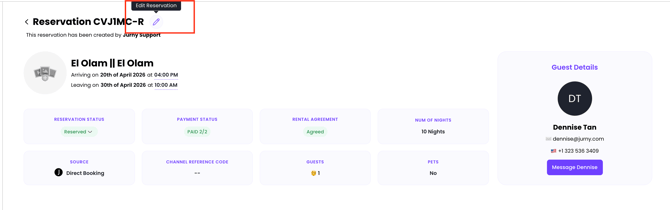
- Click the pencil icon on top of the booking beside the reference ID
-
- Update any booking details you need to change. (e.g., guest info, dates, pricing components).
💲 Recalculating Pricing After Changes
If your edits affect pricing (such as changing dates), Jurny will guide you through recalculating fees.
-
Review Pricing Changes
-
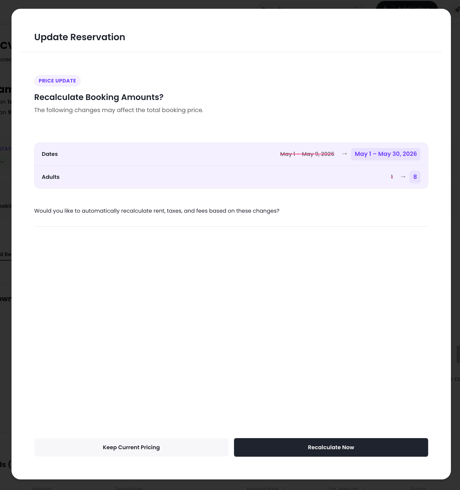
After editing, a summary window will appear highlighting the changes you made. You can now either click Recalculate Now to automatiacally calculate the new fees or Keep Current Pricing.
-
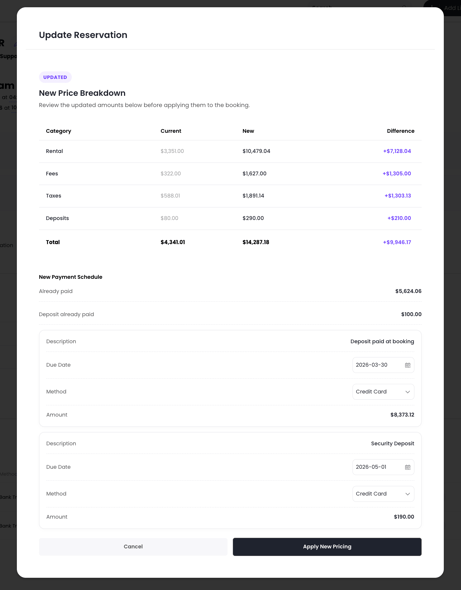
If you click Recalculate Now, the system will automatically display the original pricing and show the updated pricing. You can review the details and once everything looks good, click Apply New Pricing.
💳 Managing Payments & Refunds from Modifications
After applying new pricing, Jurny automatically handles financial adjustments:
If Additional Payment is Needed:
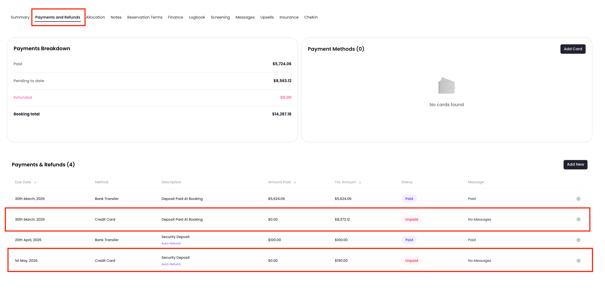
- A new payment entry will be created in the Payments & Refunds section.
- The payment will:
- Be due on the selected date
- Be automatically charged if a credit card is on file
If a Refund is Required:
For Credit Card or ACH Payments:
- A refund line item will be created automatically and the system will process the refund immediately after saving changes
For Other Payment Methods:
You will need to:- Click the Refund button in the summary after you recalculate the fees.
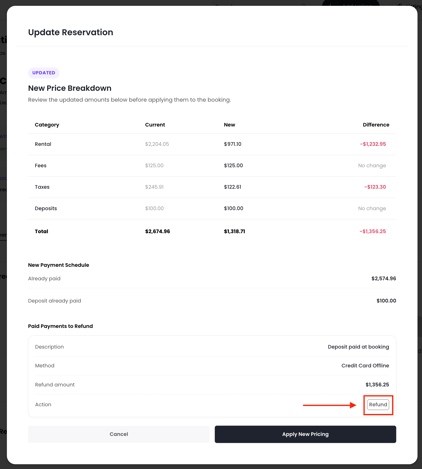
- Review the refund details and Manually refund the payment
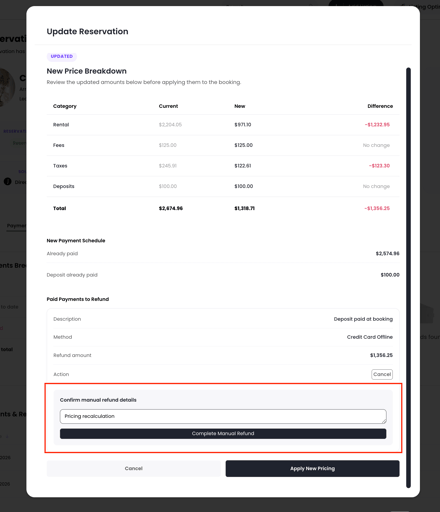
All updates in pricing will automatically update the Summary and Finance tab of the reservation.
❌ Cancelling a Reservation
-
Navigate to the reservation you want to cancel.
-
Find the Reservation Status dropdown and click and select Cancel Reservation.
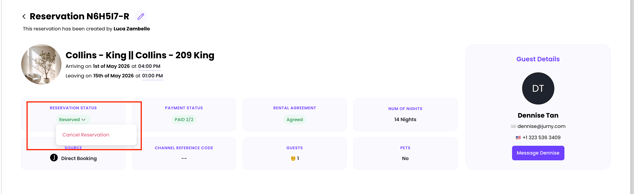
🔁 Automatic Refund Calculation
Jurny now automatically applies the listing’s cancellation policy.
- Toggle on the Issue Refund Automatically button.
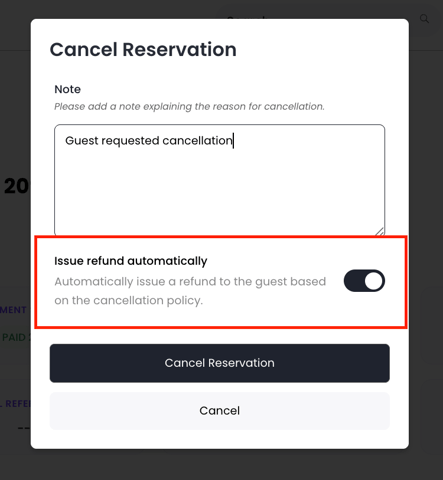
Understand Refund Behavior by Payment Method
For Credit Card or ACH Payments:
- If the reservation is eligible for a refund based on the cancellation policy:
- The system will automatically process the refund after confirmation
For Other Payment Methods:
- If the reservation is eligible for a refund; The system will notify you that a manual refund is required
- You will need to click the Refund button
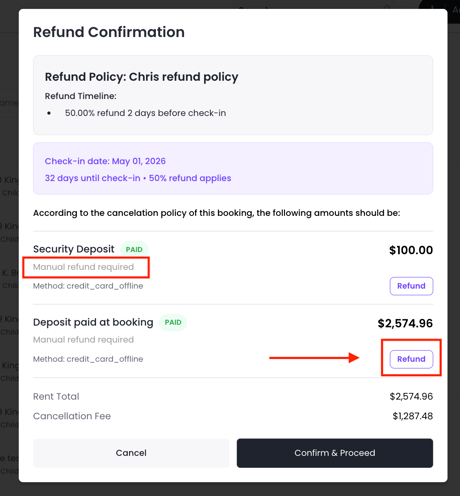
- Review the refund details
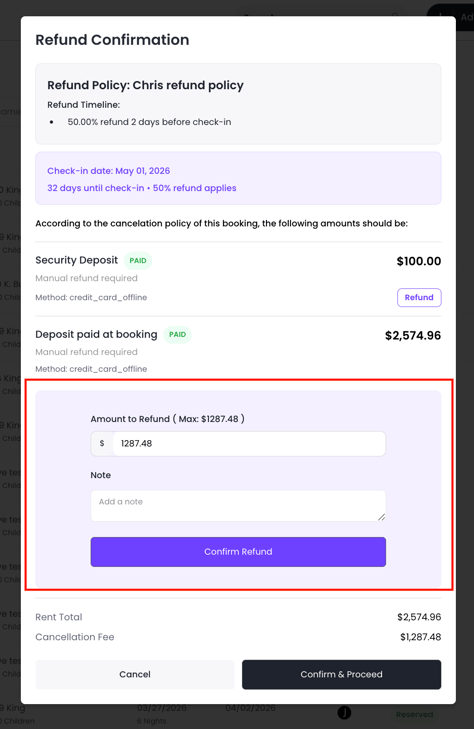
- Confirm and process the refund manually
If the Reservation is NOT Eligible for a Refund:
- The payment line item will include a note indicating that no refund will be processed
- Any outstanding balances will be marked as to be voided
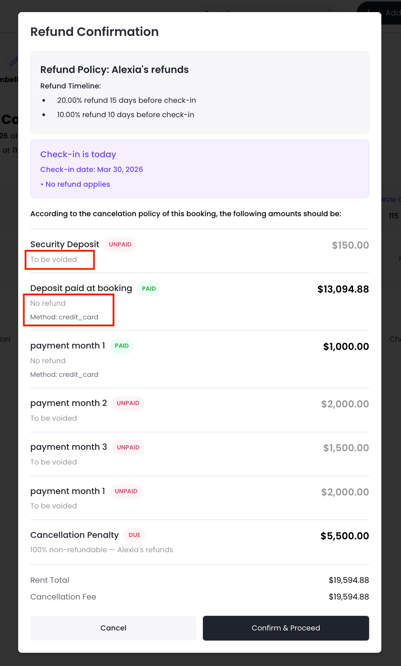
- Click Confirm and Proceed to process the cancellation.
✏️ Manual Refund Option
If you have a custom agreement with the guest and you don't want the cancellation policy to apply and refund the guest a custom amount:
- Proceed with cancellation but make sure you toggle OFF the Issue Refund Automatically button.
- You can then proceed to refund your guest manually by going into the Payments & Refunds tab of the booking and process the refund manually based on your agreement
If you need help or have any questions, don’t hesitate to reach out. Contact your Customer Success Manager or our support team at support.jurny.com – we’re happy to assist.