
Quick Navigation Index
To easily navigate through this guide, click on any of the sections below to jump directly to the information you need:
Before You Start
Before connecting Vrbo to Jurny, make sure that:
-
Your listings are already created in Jurny
-
You have access to the Vrbo account you want to connect
-
You are ready to complete Vrbo’s self-onboarding process
Note:
Vrbo requires a dedicated onboarding process when connecting to a Property Management System (PMS) like Jurny.
Step 1: Create a Vrbo Distribution Account in Jurny
-
Log in to your Jurny account
-
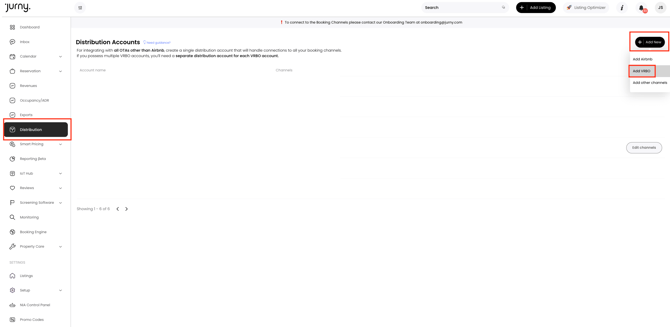
Go to Distribution from the left-hand menu
-
Click Add New Distribution Account
-
Select Vrbo
-
Complete the required account information
-
Save the account
This creates the Vrbo distribution profile Jurny will use to communicate with Vrbo.
Step 2: Feed Your Listings to Vrbo
Once the Vrbo distribution account is created, you must assign it to your listings.
-
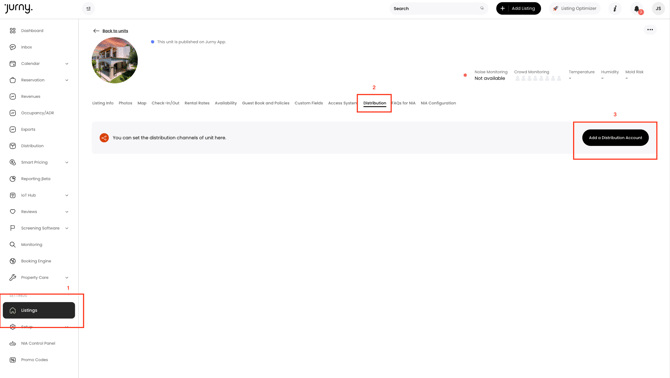
Go to Settings → Listings
-
Open a listing
-
Click the Distribution tab
-
Click Add Distribution Account
-
Select your Vrbo distribution account
-
Click Connect
Repeat this step for each listing you want to publish on Vrbo.
Tip:
Listings can be connected all at once to VRBO by using the bulk edit. Click here to learn more.
Step 3: Complete Vrbo Self-Onboarding
VRBO requires a self-onboarding process to approve the PMS connection.
Start the Onboarding
-
Open a new browser tab
-
Visit:
👉 https://www.vrbo.com/p/onboard
Complete the Form
-
Fill out your account information
-
Specify the number of units you plan to add
-
For software, search for and select Jurny
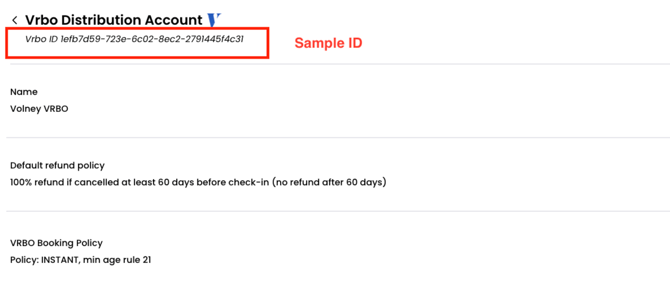
Enter the Advertiser ID
-
Go back to Jurny
-
Open Distribution
-
Click your VRBO distribution account
-
Copy the VRBO Advertiser ID
-
Paste it into the VRBO onboarding form where requested
Finish the Onboarding
-
Accept Vrbo’s terms and conditions
-
Enter your credit card information
(Vrbo requires this for commission processing)
Important:
When connecting to a PMS, Vrbo requires a payment processor. This step is mandatory.
If you haven't connected your payment processor yet, click here to learn how.
Step 4: Finalize the Integration
After submitting the onboarding form:
-
A Vrbo onboarding specialist will contact you within 3 to 5 business days
-
Reply to their email and CC your Jurny onboarding representative
-
Your Jurny onboarding team will complete the integration with Vrbo
After the Integration Is Complete
Once Vrbo is fully connected:
-
✅ All new bookings will automatically sync to Jurny
-
✅ Your Inbox will unify automatically (no extra setup needed)
-
✅ Your Vrbo commission plan will switch to 5% Pay-Per-Booking
-
✅ You will be responsible for tax remittance for Vrbo bookings
Note:
Reservations made before the integration is completed will not sync automatically.
You can request historical reservations from your onboarding representative.
Managing Different Booking Rules Per Property (Important)
Some users manage multiple properties under one Vrbo account but need different booking behavior per listing (for example, Instant Book vs Request to Book, or different rental agreements).
How This Works in Jurny
-
You only need to create one Vrbo Distribution Account
-
Complete the Vrbo self-onboarding once
-
Then customize booking rules per listing
How to Set Per-Property Rules
-
Go to Settings → Listings
-
Open a listing
-
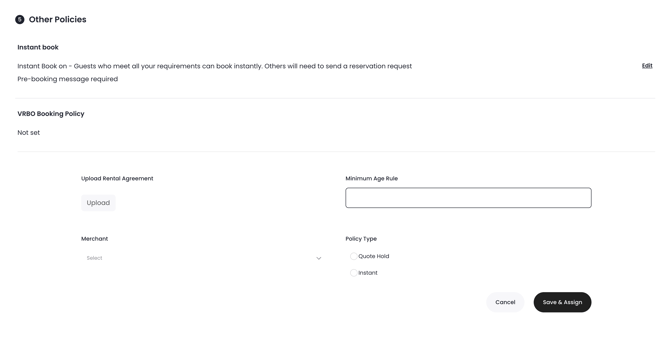
Navigate to Guest Book and Policies
-
Scroll to Section 5
-
Adjust the Vrbo Booking Policy for that specific property
-
Instant Book vs Request to Book
-
Rental Agreement
-
Other Vrbo-specific rules
-
-
Save changes
Repeat this for each listing that needs different Vrbo behavior.
You’re All Set 🎉
Your Vrbo integration is now live, your inbox is unified, and bookings will sync automatically.
-
Learn about VRBO Minimum Requirements in this guide, click here.
If you need help or have any questions, don’t hesitate to reach out.
Contact your Customer Success Manager or our support team at support.jurny.com – we’re happy to assist.