
What Is the Jurny Booking Widget?
The Jurny Booking Widget is a plug-and-play tool that lets you embed a booking experience into your website. It gives guests the ability to:
- Search for properties by city and date
- Filter results based on number of guests and pet-friendliness
- Browse photos, pricing, star ratings, and key amenities right from the results page
- View pricing, photos, and full listing details
- Check out securely through your Stripe or payment provider
Step 1: Log In and Navigate to the Booking Engine
- Log in to your Jurny Dashboard
- Go to the Booking Engine section
- Click "Add New" to create a website for the widget
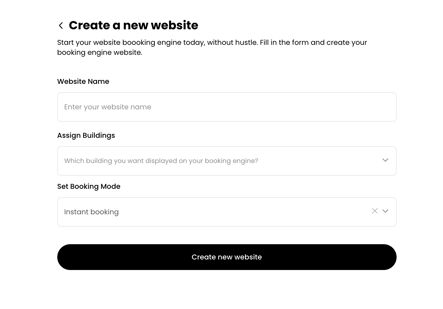
Step 2: Create a New Website
- Enter a name for your website (this is for internal use)
- Assign properties or buildings to be displayed in the widget
- Select your Booking Mode:
- 🔘 Instant Booking
- 🔘 Request to Book
- 🔘 Both
- Click "Create New Website"
Step 3: Add Your Domain
After creating your website, add your website's domain to Jurny:
- Click Add Domain
- Paste your existing domain (e.g.
www.mypropertysite.com) - Click Add Domain
Note: It may take a few minutes for the domain to become active.
Step 4: Search Filters and Display
- Click the Booking Widget tab
- Select your Booking Mode (Instant Booking, Request to Book, or Both)
- Select how you want your properties to be displayed — List or Grid
- Select if you want the travel insurance offer to be enabled or not
- Then select the listing content you want displayed on your website
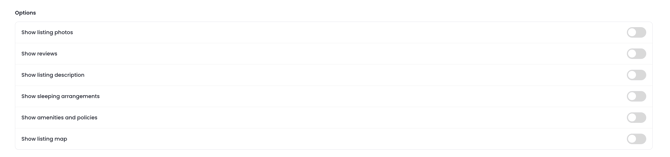
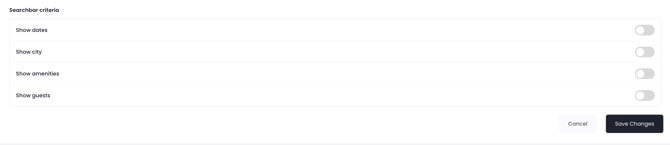
- Finally, choose all the search bar criteria you want as part of your search bar, and click Save Changes
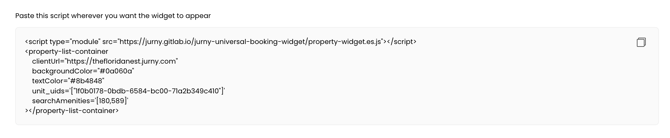
Step 5: Generate Your Script
From the same Booking Widget tab, scroll down to the Script Generator.
- Select the Domain you want to generate the script for
- Choose all the listings you want added to the booking widget
- Select all the Amenities you want included
- Choose your Background and Text Color
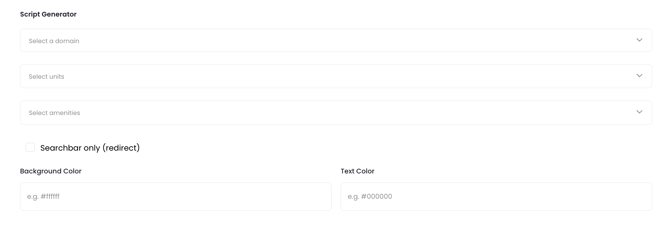
You'll then see a box appear with your generated script. Copy and paste it onto your website wherever you want the booking widget to appear.
What Is the Search Bar–Only Widget?
The Search Bar–Only Widget allows you to:
- Display a clean search bar on your homepage (or any page)
- Redirect guests to a separate results page after they search
- Avoid showing all properties upfront
- Keep your homepage minimal and focused
This mirrors the search experience in our booking engine — but without displaying property listings immediately.
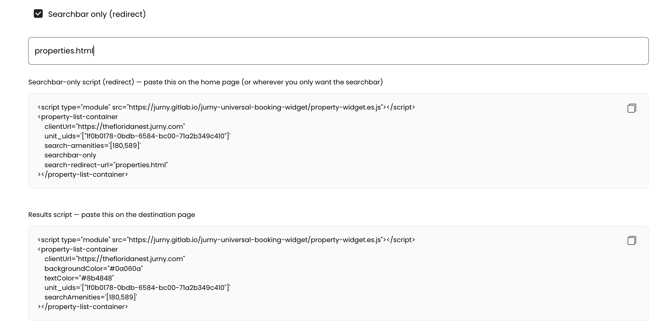
- Start by ticking the checkbox labeled Searchbar only (redirect)
- Then add your Redirect URL — the page where guests are sent after entering their search details. It's the destination page that displays the search results.
- Two scripts will then be generated:
- The first script is pasted where you want the search bar to appear — typically your homepage.
- The second script is pasted where you want the search results to appear — the page you used as your Redirect URL.
What's New: The Upgraded Booking Experience
Direct bookings compete against the big platforms every single day — and those platforms are built to convert, with social proof, transparent pricing, and smart urgency signals built right in. The booking widget now brings all of that into Jurny, while keeping the experience clean, fast, and fully branded for your property.
Fewer steps, less friction
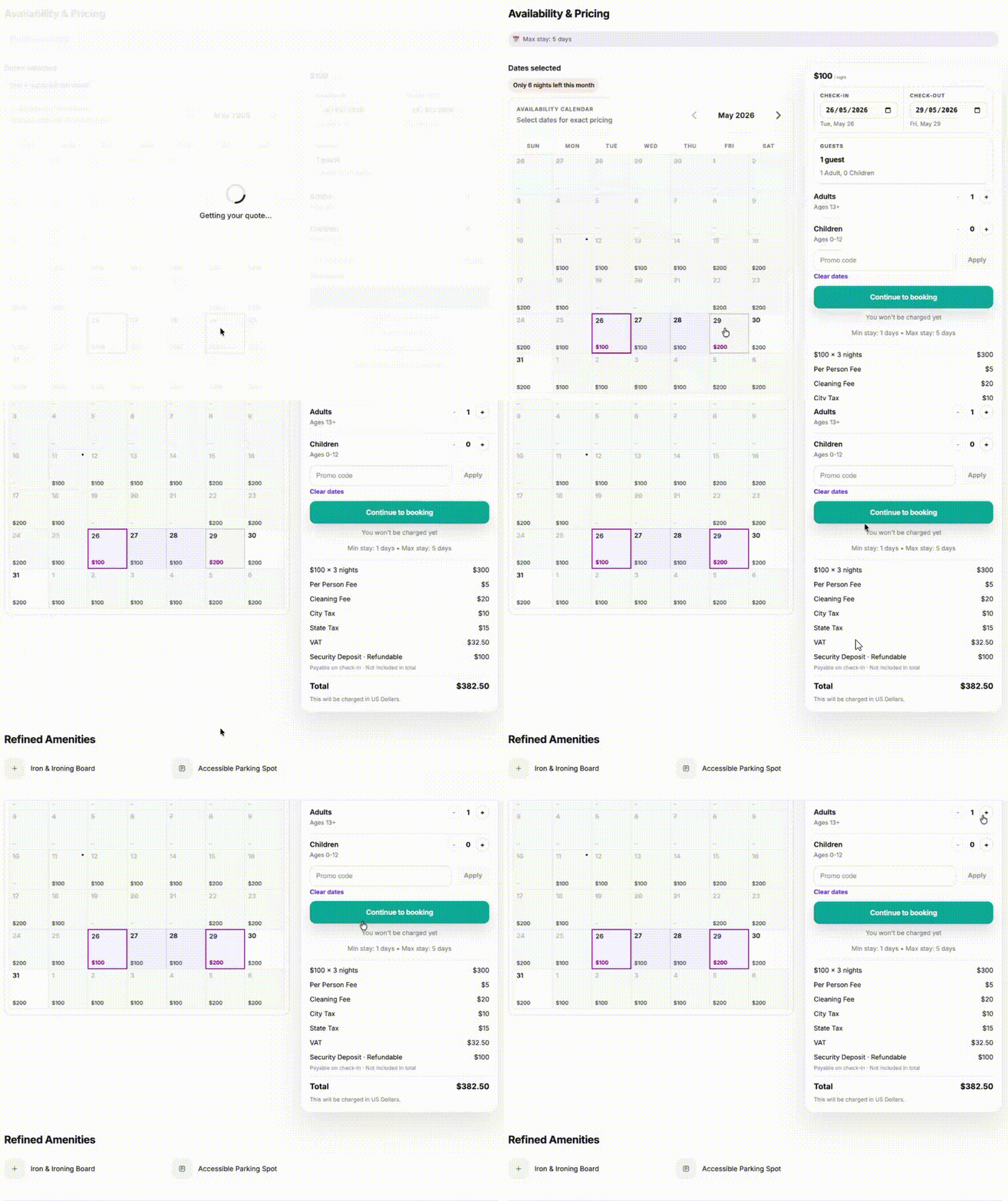
The new flow consolidates everything into two meaningful stages: a clean property page with a sticky quote panel where dates and guests are editable inline, followed by a single checkout page with guest info, upsell selection, coupon code, and payment — all in one place.
Browse photos without leaving the results page
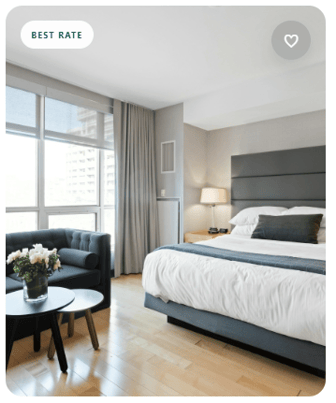
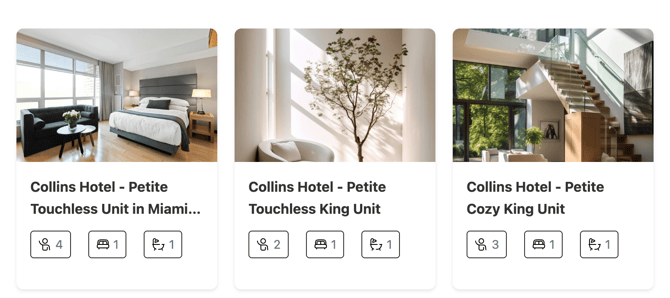
Guests can now swipe through property photos directly from the listing cards — no need to open each property just to see what it looks like inside. Arrow navigation and swipe support make this seamless on both desktop and mobile.
.gif?width=670&height=285&name=Grabaci%C3%B3n%202026-05-12%20120457%20(1).gif)
Star ratings visible at a glance — right on the photo
Star rating badges now appear directly on every listing card and property view, displaying the average score and total review count at a glance. This gives potential guests instant social proof — helping you build trust and drive more bookings with the reviews you've already earned.

Nightly rate visible before clicking in
The average nightly rate is now displayed on every listing card the moment a guest lands on your results page. Once they select dates, the card updates to show the actual total for their stay. No more making guests dig for pricing — and no more losing them to other platforms just to compare rates.
Why it matters: Pricing transparency at the discovery stage reduces drop-off and sets the right expectations before the guest invests time in a property.
Key amenities highlighted right on the card
The most important amenities for each property — things like Pool, Pet Friendly, or Kitchen — now appear as small pill tags on each listing card. Guests can instantly qualify whether a property fits their needs without opening it.
Smart urgency signals that drive decisions
The widget now shows contextual badges on listings to create natural booking momentum. Only one badge shows at a time, in priority order:
- ⚡ Instant Book — shown when instant booking is enabled for that property
- 🏷️ Best Rate — shown when an active discount applies to the selected dates
- 🔥 Only X nights available — shown when fewer nights remain in the month

Show or hide the map — guest's choice
Previously, the map could only be toggled off at the owner level. Now guests can show or hide the map themselves directly from the search results page, without losing their search context. Desktop guests in particular appreciate being able to compare locations — now they can, on their own terms.
.gif?width=546&height=382&name=Grabaci%C3%B3n%202026-05-12%20122735%20(1).gif)
"Check Availability" — a small change with a big impact
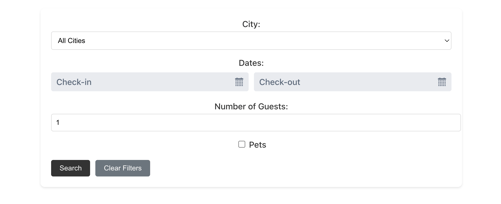
The search button label has changed from "Search" to "Check Availability." It's a small but intentional shift in framing — one that moves the guest from passively browsing to actively checking whether their dates are open. That sense of progress makes them more likely to follow through.
The core reason to book direct — now visible before the search
A short but high-impact trust line now appears just below the search CTA: "Best Rate Guaranteed · No OTA fees." It puts the strongest case for booking direct front and center — before the guest has even entered their dates.

Full price breakdown visible from the moment they view a property
The cleaning fee, taxes, and total are now visible in a sticky panel on the property detail page — before the guest clicks "Book Now." The panel stays fixed as they scroll through photos, amenities, and house rules.
"You won't be charged yet" — six words that reduce anxiety
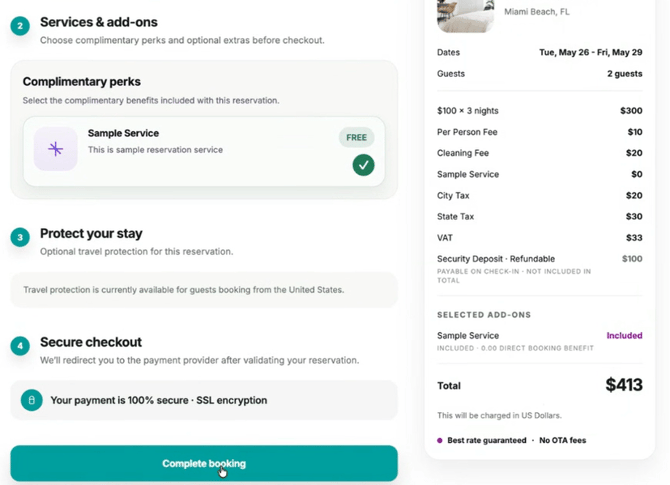
When a guest clicks "Continue to Booking" from the property preview, they now see a clear reassurance message: they are not being charged yet. The actual charge only happens once they proceed through the full booking form and confirm payment. This addresses one of the most common guest hesitation points during the checkout journey.
Trust signals at the point of payment
A secure payment badge — "Your payment is 100% secure" — now appears near the payment button. For guests booking on a site they haven't used before, this is a critical trust signal at exactly the moment they need it most.
Connecting Upsells to the Booking Widget
Your existing upsells can now be surfaced directly inside the booking flow. As an owner, you decide whether each upsell appears in the widget and how it's offered:
- Paid add-on — added to the total at its original price
- Free incentive — offered as a complimentary upgrade to encourage direct bookings
The entire upsell backend was already in place — this update connects it to the guest-facing booking experience.
Google Tag Manager & Analytics Integration
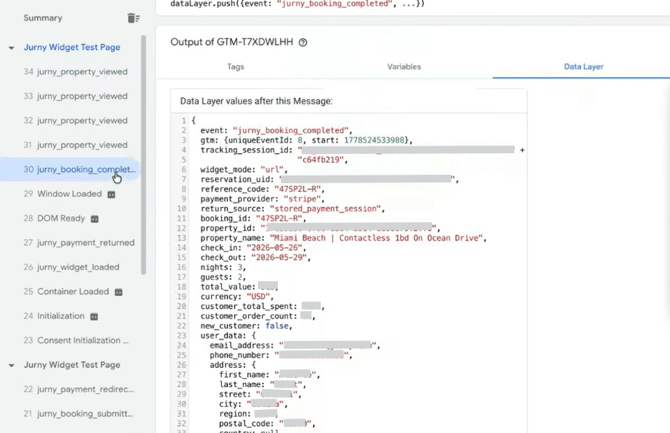
The Jurny booking widget now pushes standardized dataLayer events that your GTM container can pass to Google Analytics 4, Google Ads, Meta Pixel, or any other measurement platform. Two events are available:
- jurny_booking_completed — fires on payment confirmation, with full booking data: property, dates, nights, guests, and revenue
- jurny_property_view — fires when a guest opens a property detail page
No changes are needed on Jurny's side — your GTM container takes care of the rest.
Booking Flow: What Guests See
- Guest selects city, dates, and number of guests (and pets if allowed), then clicks Check Availability.
- Available properties are displayed, now including swipeable photo carousels, star ratings, nightly rates, key amenity pills, and smart urgency badges — plus listing content from your Jurny account and calendar availability.
- Guest selects dates and gets a quote in the sticky panel, showing base rate, cleaning fees, additional charges, and local taxes — all visible before clicking "Book Now."
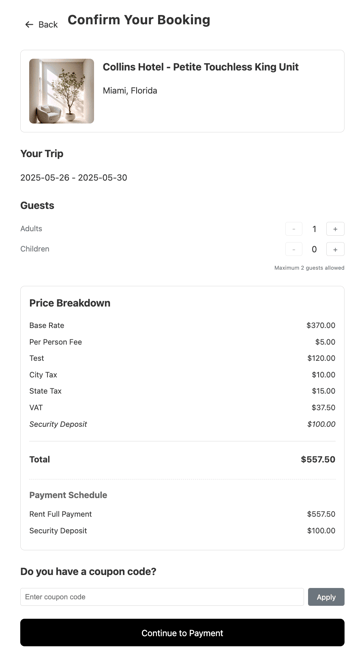
- Guest continues to a single checkout page — guest info, upsell selection, coupon code, and secure checkout via Stripe or your payment provider, reassured by the "you won't be charged yet" message and the secure payment badge.
FAQs
Can I use my own domain?
Yes! You can use either a Jurny-provided domain or your own custom one.
What if the widget doesn't show up right away?
It can take a few minutes to activate. Double-check that you pasted the code into the correct section of your website.
Can I change the booking mode later?
Yes, update this in the Booking Engine section anytime.
Is it mobile-friendly?
Yes, the widget is responsive and works on mobile devices — including the new photo swiping and map toggle.
Do I need to do anything to enable the new conversion features?
The upgraded flow, ratings, pricing, urgency badges, and trust signals are built in. Upsells are controlled per-property by you, and analytics events require only your own GTM container — no changes are needed on Jurny's side.
If you need help or have any questions, don't hesitate to reach out. Contact your Customer Success Manager or our support team at support.jurny.com — we're happy to assist.