
Quick Navigation Index
To easily navigate through this guide, click on any of the sections below to jump directly to the information you need:
How Co-Host Connections Work
When you are an Airbnb co-host, you cannot connect your own Airbnb account to Jurny for that listing.
🔑 Why?
Airbnb only grants full API permissions (messages, pricing, availability, reservations) when the listing owner’s Airbnb account is connected to the PMS.
This means:
-
The owner’s Airbnb account must be connected to Jurny
-
You can still manage everything as the co-host once setup is complete
-
The owner does not need to actively manage anything in Jurny
What Must Happen First
Before you can manage a co-host listing in Jurny:
✅ The property owner’s Airbnb account must be connected to Jurny
✅ This connection must remain active
✅ You can then map the owner’s listing and operate it as the co-host
Important Requirements Before Connecting
⚠️ These are critical — missing any of them will block the connection.
1. The owner’s Airbnb account must NOT be connected to another PMS
Airbnb allows only one PMS connection per account.
If the account is connected to:
-
Guesty
-
Hostaway
-
Lodgify
-
Any other PMS
👉 Airbnb won't allow the Jurny connection.
2. The owner’s Airbnb account must stay connected
If the owner disconnects Airbnb from Jurny at any time, the co-host integration breaks immediately.
How to Connect the Owner’s Airbnb Account
These steps must be completed while logged into the owner’s Airbnb account.
Step 1: Log in to the Owner’s Airbnb Account
-
Log in to the Airbnb account that owns the listing
Step 2: Open Distribution in Jurny
-
In Jurny, go to the left-hand menu
-
Click Distribution
-
Click Add New
Step 3: Add a New Airbnb Account
-
Select Add Airbnb
-
Choose Connect a New Airbnb Account
-
When prompted, select Full Connection
⚠️ Important:
Do not select Operations / Partial mode.
Co-host listings require Full Connection for Airbnb to grant permissions.
Step 4: Complete the Airbnb Authorization
-
Follow the Airbnb authorization prompts
-
Review the permissions requested
-
Click Allow
Once completed, the owner’s Airbnb account will be connected to Jurny.
What You Do After the Owner Is Connected
Once the owner’s Airbnb account is successfully connected to Jurny, the next steps depend on whether the listing already exists in your Jurny account.
Option 1: The Listing Is NOT Yet Added to Jurny
If the co-hosted listing does not yet exist in Jurny:
Step 1: Import the Listing
-
Go to the top navigation bar
-
Click Add Listing
-
Choose Import from Airbnb
-
Select the listing from the owner’s Airbnb account
-
Complete the import
Step 2: Update the Default Sender
After the listing is imported:
-
Open the listing in Jurny
-
Go to Distribution
-
Scroll down to Default Sender
-
Select your Airbnb account
-
Click Save
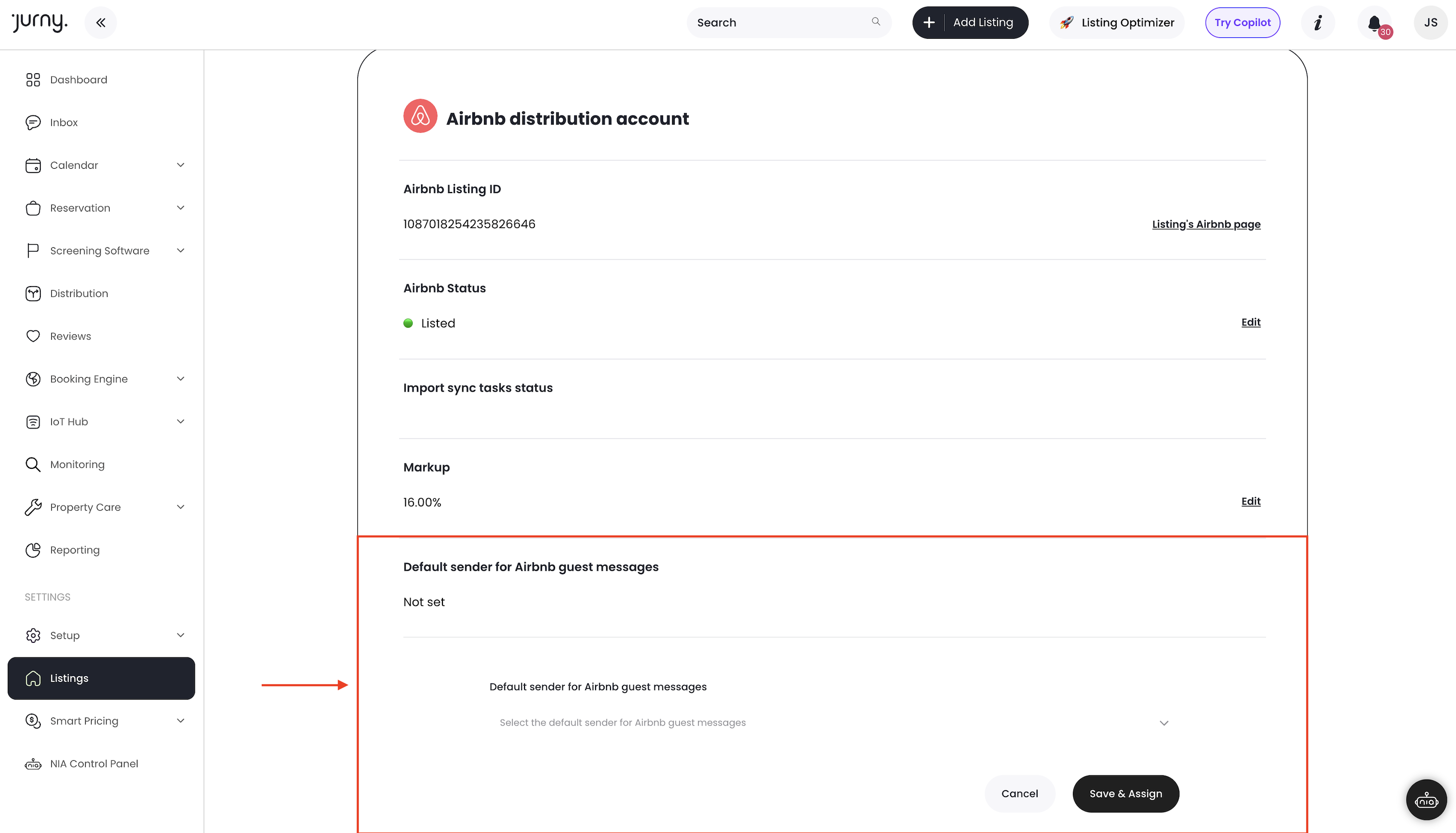
This allows you, as the co-host, to fully manage:
-
Guest communication
-
Reservations
-
Day-to-day operations
While the listing remains authorized through the owner’s Airbnb account.
Option 2: The Listing Is ALREADY in Jurny
If the listing already exists in Jurny:
-
Open the listing from your Jurny dashboard
-
Go to Distribution
-
Confirm the listing is mapped to the owner’s Airbnb account
-
Update Default Sender to your Airbnb account
-
Click Save
No re-import is required.
Final Notes & Best Practices
-
You can connect multiple Airbnb accounts to Jurny
-
Each owner account authorizes only their own listings
-
Always explain this process to owners before onboarding
-
The owner does not lose control of their Airbnb account
-
This setup is the only supported way to manage co-host listings through a PMS
Tip: If you’re scaling quickly, setting expectations with owners early will save a lot of time later.
If you need help or have any questions, don’t hesitate to reach out. Contact your Customer Success Manager or our support team at support.jurny.com – we’re happy to assist.