
Quick Navigation
-
Step 3: Assign the Payment Processor to Multiple Listings (Bulk Edit)
-
Step 4: Important Notes About Existing Reservations & Stored Cards
Step 1: Connect your New Payment Merchant to Jurny
Before assigning the processor to listings you need to connect the new merchant to Jurny. Use the link below for the step by step process on how to connect your merchant to your Jurny account.
➡️ Step 1: Connect Merchant / Payment Gateway
Note: You can have one merchant connected while another one is active, but listings must be explicitly assigned to the correct processor.
Step 2: Assign the Payment Processor to a Single Listing
To apply the new processor to one listing:
-
Go to Listings
-
Select the specific listing you want to update
-
Navigate to the Guest Book and Policies tab
-
Locate the Payments section
-
Select your new processor from the dropdown
-
Click Save
That listing will now process new payments through the selected processor.
Caution: If you skip this step, the listing may continue using the previous processor.
Step 3: Assign the Payment Processor to Multiple Listings (Bulk Edit)
If you want to apply the new processor to all listings at once:
-
Go to Listings
-
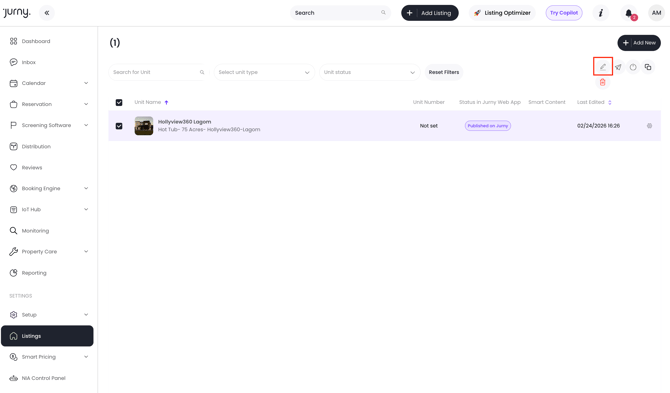
Select the checkboxes next to the listings you want to update
-
To select all, check the top checkbox
-
-
Click the pencil icon to Bulk Edit
-
In the bulk editor panel:
-
Find the Guest Book & Policies tab
- Look for the Merchant field
-
Select your new processor you connected
-
-
Click Save Changes
The system will apply the new processor to all selected listings.
Tip: After bulk updating, spot-check 1–2 listings to confirm the processor was successfully assigned.
Important Notes About Existing Reservations & Stored Cards
Changing payment processors does not migrate:
-
Existing reservations
-
Previously stored credit card information
-
Saved payment methods in your old merchant
Note: Future bookings will automatically use the newly assigned processor once it is properly set at the listing level.
Troubleshooting & FAQs
Payments are still going through the old processor
-
Double-check the listing’s Guest Book and Policies section
-
Confirm the correct processor is selected
-
Ensure changes were saved
Bulk edit did not update all listings
-
Confirm all listings were selected before clicking Bulk Edit
-
Re-open a listing to verify the processor field
-
Try reapplying the bulk edit if needed
If you need help or have any questions, don’t hesitate to reach out. Contact your Customer Success Manager or our support team at support.jurny.com – we’re happy to assist.