
Quick Navigation Index
To easily navigate through this guide, click on any of the sections below to jump directly to the information you need:
Why Connecting a Payment Gateway Matters
Your payment gateway is the financial engine behind your booking operations. It allows you to:
-
Accept guest payments
-
Process refunds
-
Charge security deposits
-
Automate scheduled payments
-
Receive payouts to your bank account
-
Fully activate your direct booking website
Without connecting a merchant, you cannot accept direct bookings or connect to OTAs like VRBO, HomeToGo and others.
Note: Your payment gateway choice affects your direct booking website, automated payments, security deposits, and refund workflows.
Supported Payment Gateways
Jurny currently supports:
-
Stripe (Global – recommended)
-
Lynnbrook (US)
-
Syspay (Europe only)
Stripe: Simple, Transparent, and Recommended
Stripe is the easiest and most commonly used payment gateway among Jurny hosts.
Pricing:
-
Flat 3% fee per transaction
Simple, predictable, and transparent.
Why Choose Stripe?
-
Easiest setup
-
Works globally
-
Fully compatible with all Jurny features
Recommended if you use Autohost (Lynnbrook & Syspay are not supported)
How to Connect Stripe
-
On the left-hand menu, go to:
Setup → Booking & Payments → Merchants → Connect to Stripe
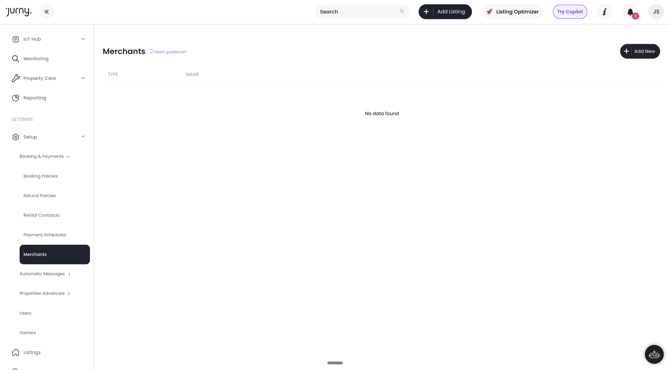
2. Choose whether to:
-
-
Connect an existing Stripe account, or
-
Create a new Stripe account
-
3. If you already have a Stripe account:
- Use your existing email
- You can create a new business profile under the same email
- Stripe will guide you through verifying your business details
4. If creating a new account:
- Enter the best email for your business
- Complete the verification steps
- Add your business and payout information
5. Once finished, you will be prompted to name your Stripe account in Jurny.
This name is internal only—choose anything that helps you recognize it.
🎉 You're all set! Your Stripe account is now connected.
Tip: You can rename your merchant account later if needed.
Lynnbrook: Flexible Pricing (USA and Canada)
Lynnbrook is another payment gateway supported by Jurny, often used by vacation rental operators. Sign up through this link.
Pricing:
Fees vary based on:
-
Card type
-
Transaction size
-
Industry
-
Monthly volume
For exact pricing, contact Lynnbrook support directly.
Ideal For: US-based operators wanting a merchant account outside of Stripe.
How to Connect Lynnbrook
To connect Lynnbrook:
-
Request your Target ID from Lynnbrook.
-
Send the Target ID to your Customer Success Manager or onboarding rep.
-
Jurny’s team will handle the connection on your behalf.
Important:
If you plan to use Autohost, Lynnbrook is not supported.
Autohost requires Stripe.
Syspay: For European Hosts
Syspay is a secure, innovative European payment service provider (PSP). Sign up through this link.
Commissions:
-
0.9% + €0.25 per transaction
Key Features
-
PCI DSS compliance
-
Built-in fraud prevention
-
Pre-authorization up to 31 days
-
Dynamic currency conversion
-
One-click payments
-
Weekly settlements (7-day delay)
How to Connect Syspay
-
Create a Syspay account
-
Request activation of the API – Payment Permissions
-
Provide your Jurny onboarding representative with:
-
API login
-
API passphrase
-
The Jurny team will complete the integration for you.
Next Step in the Onboarding Process
➡️ Step 1: Assign Payment Merchant to Listings
This ensures your booking payments from each listing will run through your payment processor automatically.
If you need help or have any questions, don’t hesitate to reach out. Contact your Customer Success Manager or our support team at support.jurny.com – we’re happy to assist.